
Email Deliverability · Spam Score · Email Authentication · Troubleshooting
Email Spam Score Troubleshooting: Diagnose and Fix Delivery Signals
· InboxPlacement.io Team
Email spam score troubleshooting is the process of turning a test result into a safe diagnosis. A report may flag SPF, DKIM, DMARC, reverse DNS, content, links, HTML, or reputation signals. The useful question is not “What score do I need?” but “Which signal is failing, what caused it, and how can I verify the fix?”
DNS and configuration checks can show whether authentication is possible. They cannot prove that a particular message will reach the inbox. Inbox placement also depends on the message headers, sender and domain reputation, recipient engagement, content, and each mailbox provider's filtering policy.
This guide shows how to collect the right inputs, interpret a spam-test report, fix common failures in a safe order, and verify the result with real messages.
What spam-score troubleshooting can validate
A diagnostic tool can often inspect:
- SPF record presence, syntax, mechanisms, includes, and redirects.
- DKIM selector discovery and public-key retrieval.
- DMARC record presence, policy, reporting tags, and alignment settings.
- PTR or reverse-DNS configuration for a sending IP, where the tool can query it.
- MX and A record existence and basic consistency.
- Message content, subject-line patterns, HTML structure, link destinations, and image handling.
- Some blacklist or reputation signals, depending on the tool and provider data available.
Those checks identify possible causes. They do not show whether a specific delivered message carried a valid DKIM signature, whether SPF aligned after forwarding, or whether Gmail, Outlook, Yahoo, or another provider placed the message in the inbox.
Gather the right inputs before you troubleshoot
Run the check against the sending stream that is actually having trouble. Collect:
- The domain in the visible
From:header. - The envelope-from or
Return-Pathdomain. - The sending IP address or ESP.
- The DKIM selector name, if you know it.
- A recent message's full headers.
- The exact subject, links, HTML, and images you intend to send.
Do not test a generic sample message and assume the result applies to your campaign. A transactional stream, marketing platform, and corporate mail server may use different IPs, selectors, and envelope domains.
Run the test and read the overall result
Send the actual message from the production sending system to the test address provided by your chosen tool. Save the report with its test time, message version, sending stream, and provider context.
InboxPlacement.io's result-analysis workflow combines a test address, an overall inbox-placement signal, and a count of passed, warning, failed, and informational checks. Use it to decide which category to investigate first, not as a universal score that every mailbox provider will reproduce.
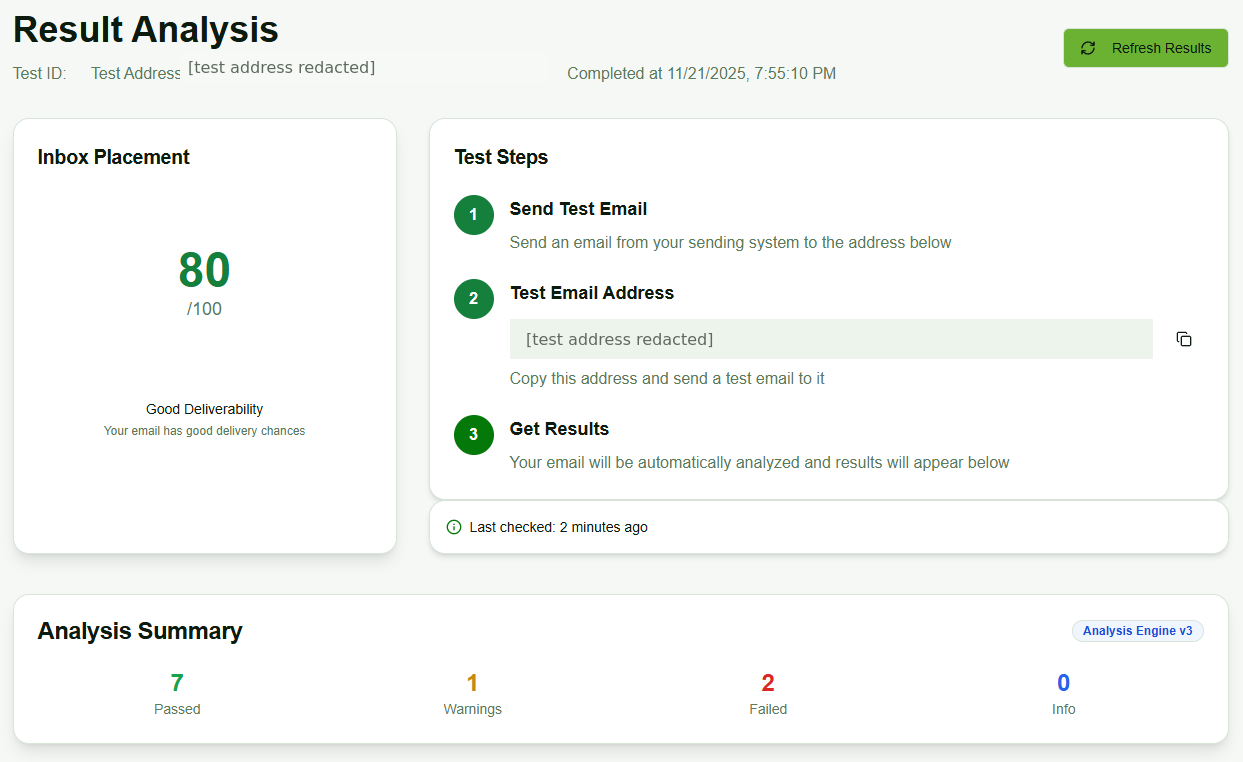
Illustrative InboxPlacement.io result analysis. The 80/100 result, test address, timestamp, label, and pass/warning/failure counts are sample scan data; they do not predict delivery for every mailbox provider or future message.
How to interpret a score
Different tools use different scales and weights. Some assign a higher-is-better score, some use an inverse spam score, and some show category scores rather than one overall number. Before interpreting a number:
- Confirm what direction the scale uses.
- Read the failed and warning checks behind the number.
- Compare the result only with the same tool, same sending stream, and same message version.
- Treat the score as a troubleshooting signal, not an inbox-placement guarantee.
An all-green DNS result can still be followed by spam placement if reputation, content, engagement, or recipient-side policy is the problem. A low score can also contain one fixable technical issue rather than a complete delivery diagnosis.
Separate authentication from content quality
Look at category results before changing DNS or rewriting the message. A report may show that authentication is healthy while content quality needs attention, or that content is acceptable while a missing DKIM selector is blocking reliable authentication.
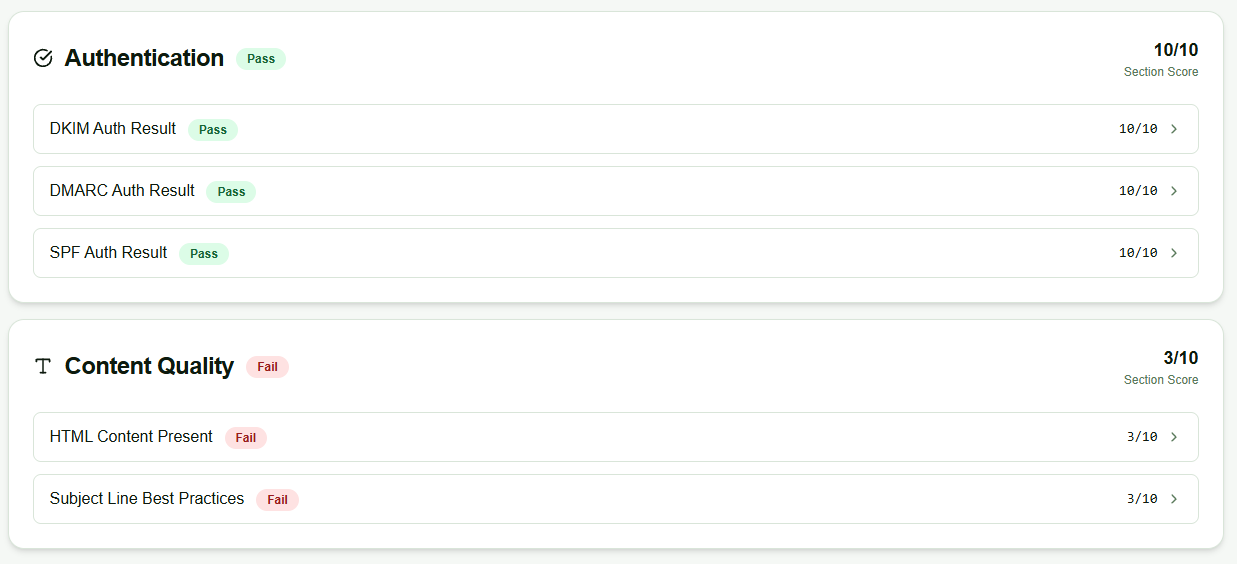
Illustrative category analysis. A passing authentication category and a failing content-quality category show where to investigate first; they are not a provider-wide inbox decision.
Use the category relationship as a decision guide:
- Authentication failure: inspect DNS records and then confirm the result in a real message header.
- Content or HTML failure: inspect the exact message version, subject, links, images, and markup.
- Infrastructure warning: check sending IP, PTR, MX, and provider configuration.
- Reputation or blacklist warning: investigate sending history and list quality instead of rewriting copy alone.
- All checks appear healthy: test placement across the mailbox providers that matter to your audience.
Common failure patterns and safe fixes
1. Missing or malformed SPF
Symptom: The report shows no SPF record, an SPF syntax error, or an unauthorized sending IP.
Likely cause: The domain has no v=spf1 TXT record, the ESP's include is missing, or the record does not describe the actual sending path.
Safe fix: Inventory every legitimate sender and add only the provider mechanisms documented for those senders. Keep the record within SPF's DNS-lookup limit and avoid copying an example include without verifying the provider.
Retest: Confirm that DNS returns the intended SPF record, then send a message from the affected stream and inspect the SPF result for that message. The SPF sender authorization guide covers record-level troubleshooting.
2. Missing or invalid DKIM selector
Symptom: The checker cannot retrieve the public key, or the message has no valid DKIM signature.
Likely cause: The selector is not published at selector._domainkey.example.com, the ESP is signing with a different selector, the key is truncated, or the message is not being signed.
Safe fix: Enable DKIM in the sending provider, publish the exact DNS record it supplies, and confirm that the signing domain is appropriate for the visible From domain. Do not invent a selector or copy a key from another provider.
Retest: Query the selector and send a fresh message. Verify the DKIM signature and result in Authentication-Results. Use the DKIM tester guide for selector and signature checks.
3. DMARC is absent or still in monitoring mode
Symptom: The report shows no DMARC record or a valid p=none policy.
Likely cause: No TXT record exists at _dmarc.example.com, or the domain is intentionally collecting reports before enforcement.
Safe fix: Publish one valid DMARC record, start with p=none when sender inventory is incomplete, and review aggregate reports before moving to quarantine or reject. The DMARC checker results guide explains the tags and alignment checks.
Retest: Confirm that the record resolves, then inspect a real message for DMARC disposition and alignment. A published record does not prove that every sender passes.
4. SPF or DKIM passes without DMARC alignment
Symptom: SPF or DKIM is technically passing, but DMARC fails or the report flags misalignment.
Likely cause: The envelope-from domain or DKIM d= domain does not align with the visible From domain under the selected relaxed or strict mode.
Safe fix: Configure the provider to use an aligned return path or DKIM signing domain. Relaxed alignment can allow related domains; strict alignment requires an exact match. Check all third-party senders before tightening policy.
Retest: Send a new message and confirm that at least one passing SPF or DKIM identifier aligns with the visible From domain.
5. Missing PTR or inconsistent mail infrastructure
Symptom: The sending IP has no reverse DNS, the PTR name does not resolve forward, or MX/A records are inconsistent.
Likely cause: The hosting provider or ESP has not configured reverse DNS, or the mail infrastructure changed without updating DNS.
Safe fix: Ask the infrastructure owner to configure a stable PTR hostname and verify forward resolution. Confirm that the actual sending IP, EHLO name, and provider configuration agree. Do not publish an arbitrary PTR record if the IP is controlled by an ESP.
Retest: Query PTR and forward DNS, then inspect the Received headers of a real message.
6. Content or subject-line warnings
Symptom: Authentication passes, but the report flags subject wording, excessive punctuation, hidden text, broken HTML, suspicious links, or missing unsubscribe information.
Likely cause: The message is overly promotional, copied from a document editor with broken markup, uses shortened or mismatched URLs, or hides important content in images.
Safe fix: Rewrite the flagged subject or body language naturally, validate the HTML, use HTTPS links that match their visible labels, provide meaningful text and alt text, and include a clear unsubscribe path. Do not remove every ordinary sales word just to chase a score; fix the specific rule and preserve truthful content.
Retest: Send the revised message through the same test path and compare the exact warnings before and after.
7. Reputation, complaint, or blacklist signals
Symptom: The report flags sender reputation, complaint history, or a sending IP or linked domain on a list.
Likely cause: Poor list acquisition, sudden volume changes, compromised credentials, repeated bounces, or a shared-IP problem.
Safe fix: Pause or throttle risky sending, remove purchased or unverified contacts, suppress hard bounces, investigate account access, and coordinate with the ESP. Follow the list operator's process after the cause is fixed. A content rewrite cannot repair an active abuse problem.
Retest: Recheck the relevant infrastructure and send controlled messages. Use the IP blacklist monitoring guide for a list-specific investigation, then verify actual placement separately.
A safe remediation workflow
- Inventory the sending path. Record the domain, envelope sender, IP, ESP, DKIM selector, and message version.
- Run DNS and report checks. Save SPF, DKIM, DMARC, PTR, MX, content, and link findings with the test time.
- Fix the highest-confidence root cause. Start with authentication and infrastructure failures before changing copy or policy.
- Coordinate with providers. Ask the ESP to confirm shared IP ownership, signing configuration, and required DNS values.
- Retest the same message. Keep the sending stream and test conditions consistent so the comparison is meaningful.
- Verify a real delivery path. Inspect headers and mailbox placement after DNS and content checks pass.
- Monitor after the fix. Watch bounces, complaints, engagement, and provider-specific placement instead of relying on one score.
Keep a short record of the symptom, likely cause, safe fix, and retest criteria for each sending source. That makes it easier to distinguish a DNS propagation delay from a persistent reputation or content problem.
What DNS checks cannot prove about inbox placement
Authentication improves message legitimacy, but mailbox providers also evaluate sender and domain reputation, recipient engagement, complaint behavior, content, link destinations, sending history, and local policy. Forwarding can break SPF because the forwarding server changes the sending IP, even though the original sender's configuration is correct.
For a closer look at the delivered message itself, use the email-header troubleshooting guide. For provider-specific results, run the complete inbox-placement test.
Verify a real message after the change
After DNS or content fixes, send the repaired message to real mailboxes you control at the providers that matter to your audience:
- Record the message version, sender, subject, provider, and test time.
- Capture full headers and redact personal data before sharing them.
- Confirm DKIM is present and verifies.
- Confirm SPF reflects the actual sending IP and that it aligns when DMARC requires it.
- Confirm DMARC passes or has the expected disposition and aligned identifier.
- Check whether the message reached inbox, spam, or was rejected.
- Repeat across representative providers and continue monitoring after the change.
Only a signed and delivered message can show that authentication worked on that delivery path. Even then, one test does not guarantee future placement for every recipient.
Frequently Asked Questions
Will fixing DNS records guarantee inbox placement?
No. DNS fixes make authentication possible, but inbox placement also depends on reputation, complaints, engagement, content, links, and recipient-specific filtering. Verify real messages across representative providers.
What should I fix first when a spam report has several failures?
Start with failures that prevent authentication or identify the wrong sending infrastructure: SPF, DKIM, DMARC alignment, PTR, and the actual sending IP. Then address content and HTML warnings, and finally investigate reputation or list-quality signals that may require longer-term remediation.
How long should I wait after a DNS change before retesting?
Follow the DNS record's TTL and recheck from more than one resolver. Many changes appear within minutes or hours, but longer caching can make results inconsistent. Send a new message after the record is visible instead of relying only on a DNS lookup.
Can one DKIM key serve multiple sending providers?
It may be technically possible, but provider-specific selectors and documented key management are easier to operate. Use the selector that the sending provider actually signs with and confirm it in a real header.
Why can authentication pass while an email still lands in spam?
Authentication proves authorization and alignment, not positive reputation or recipient engagement. Content, links, complaint history, sending volume, and provider-specific filtering can still lead to spam placement.
Should I optimize for a perfect spam score?
No. Scores use tool-specific rules and weights. Fix clear authentication, infrastructure, content, and list-quality problems, then verify real delivery. A perfect score in one analyzer is not a universal inbox prediction.
Troubleshoot the score, then verify delivery
Use the report as a prioritized investigation checklist rather than a verdict. Fix the underlying authentication, infrastructure, content, or reputation issue; rerun the same test; and confirm the outcome with full headers and inbox-placement results.
Run a free spam score analysis at InboxPlacement.io →
For a broader pre-send workflow, read the email deliverability testing guide.