
DKIM · Email Authentication · Email Deliverability · DNS Diagnostics
DKIM Tester: How to Validate Results and Fix Common Errors
· InboxPlacement.io Team
Updated
A DKIM tester helps you check whether a selector's public key is published in DNS and, when you provide a raw message, whether the DKIM signature validates against that message. It is useful for finding missing selectors, malformed records, key-format problems, and signing mismatches.
It cannot prove that your email will reach the inbox. A DNS-only result says what is published; a full-message result says whether one supplied message validates. Inbox placement still depends on sender reputation, engagement, content, complaints, volume, and the receiving provider's filtering.
This guide explains what a DKIM tester can validate, how to read each result in plain English, how to fix common failures safely, and how to verify a real message after making a change.
What a DKIM tester checks
DKIM, or DomainKeys Identified Mail, uses a private key to sign selected message headers and the message body. The sending system publishes the matching public key in DNS. A receiving system uses the selector and signing domain in the DKIM-Signature header to find that key and verify the signature.
A tester may perform one or both of these checks:
- DNS-only validation: fetch the TXT record at
selector._domainkey.example.comand inspect its syntax and public-key parameters. - Full-message verification: use a raw message or DKIM-Signature header to verify the cryptographic signature, canonicalization, and body hash for that specific message.
These are different tests. A valid DNS record does not prove that your sending pipeline uses the matching private key, signs the intended messages, or preserves the signed content after delivery.
What DNS-only validation can tell you
- Whether the queried selector resolves to a TXT record.
- Whether the record contains the expected
v=DKIM1version tag. - Whether a public key appears in the
p=tag. - Which key type appears in
k=, when the record publishes one. - Whether the record contains recognizable tag-value syntax.
- Whether the record is empty, malformed, or intentionally disabled.
What it cannot tell you
- Whether your provider is signing outbound messages.
- Whether the private key used by the sender matches the public key in DNS.
- Whether the
d=signing domain aligns with the visibleFrom:domain for DMARC. - Whether a forwarding path or message rewrite will break the signature.
- Whether a mailbox provider will place the message in Inbox, Spam, or another tab.
Treat a DNS result as configuration evidence, not as a deliverability guarantee.
How to run a DKIM test
You usually need two values:
- Domain: the domain that appears in the selector's DNS name or the signing domain in the message.
- Selector: the value after
s=in the DKIM-Signature header, or the selector supplied by your email provider.
The tester then looks up:
selector._domainkey.example.com
For example, a message signed with d=example.com; s=google normally points the validator to:
google._domainkey.example.com
If your provider gives you a CNAME instead of a long TXT value, follow that provider's setup instructions. Do not replace a required CNAME with a guessed TXT record.
For a DNS-only check
Enter the domain and selector, then review:
- Record found: the selector resolves in the resolver being used.
- Record missing: the hostname did not return the expected public key.
- Record format: the tags and values can be parsed as a DKIM record.
- Public key present: the
p=value is not empty. - Algorithm or key type: the tester can identify the published key parameters.
For a full-message check
Use the complete original message where possible, not a screenshot of a header. The original should include the DKIM-Signature header and the body that was delivered. The verifier can then check the b= signature value and bh= body hash against the message it received.
How to read DKIM tester results
PASS or valid record
A DNS PASS or valid record result usually means the selector record exists and its syntax and public-key material are readable. A full-message PASS means the supplied signature matches the supplied message using the public key found through DNS.
Those statements are narrower than “email is deliverable.” Confirm the signing domain, alignment, and mailbox placement separately.
NO RECORD
NO RECORD means the selector you queried was not found at the expected DNS name. Common causes include:
- The selector was typed incorrectly.
- The provider has not finished publishing the record.
- The record was added under the wrong domain or DNS zone.
- The sender is using a different selector than the one you checked.
- A required CNAME target or delegation is missing.
Start by copying the exact s= value from a real message or the provider's setup screen. Then check the DNS hostname at more than one resolver if propagation is a concern.
INVALID RECORD or BAD SYNTAX
This means the TXT contents do not follow the expected tag-value format. Look for:
- A missing or misspelled
v=DKIM1. - A malformed or truncated
p=public key. - Invalid separators or copied quotation marks.
- A record published at the wrong hostname.
- Multiple conflicting records returned for the same selector.
Edit the existing record rather than adding a second competing value. Keep the exact syntax supplied by your email provider.
EMPTY PUBLIC KEY (p=)
An empty p= value intentionally disables a selector. It is commonly used when a key is being retired. If mail is still being signed with that selector, the receiving system cannot validate the signature.
Do not remove a selector just because it is old. First confirm that no active sender uses it and that the replacement selector is published and signing real messages.
KEY TOO SHORT or WEAK
A tester may flag a key because its strength is below current provider guidance. The correct remediation depends on the sending system and the key type, but a common recommendation for RSA DKIM keys is to move from 1024 bits to 2048 bits when the provider supports it.
Do not change key material blindly. Generate the replacement through the provider that owns the signing key, publish its new selector, test it, and keep the previous selector available until the sender has switched.
SIGNATURE MISMATCH
A full-message signature mismatch means the supplied signature did not validate against the supplied message. Typical causes include:
- The private key used for signing does not match the public key in DNS.
- The sender used a different selector than the one you queried.
- A footer, tracking rewrite, or list processor changed signed content after signing.
- The raw message was copied incompletely or altered before testing.
- DNS still returns an older key because of caching or an incorrect record.
Check the original message, selector, signing domain, and DNS record as one set. Testing only one of those pieces can hide the real mismatch.
Body hash mismatch
The bh= value represents the canonicalized body that was signed. If an intermediate system appends a footer, rewrites links, changes line endings, or otherwise changes signed content, the body hash can fail even when the selector exists and the public key is correct.
Check where signing occurs in the outbound path. If a service modifies the message, it usually needs to make those changes before the final DKIM signing step.
Valid signature but wrong signing domain
A message can pass DKIM cryptographically while failing DMARC alignment. The signing domain is the d= value. Compare it with the visible From: domain under the alignment mode in your DMARC policy.
For example, a signature with d=vendor.example.net may be valid but not aligned with From: billing@example.com under strict alignment. A related organizational domain may align under relaxed alignment, depending on the domains involved.
Platform example: read the finding, not just the status
The InboxPlacement.io result below shows more than a simple valid/invalid label. It identifies the Google selector, confirms a valid DKIM record format and a public key, identifies RSA and rsa-sha256, and calls out a 512-bit key as weak. It also recommends stronger key material and descriptive, rotating selectors.
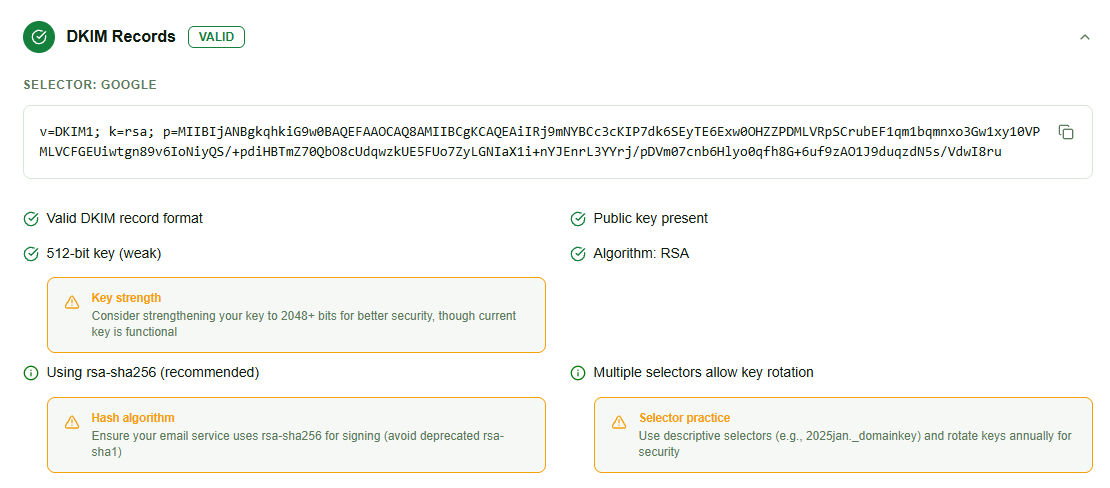
InboxPlacement.io DKIM tester example. The selector and key shown are product-result evidence for this example; check your own sender and provider guidance before changing DNS or rotating keys.
The important lesson is that “valid record” and “ready for best-practice delivery” are not always the same conclusion. A tester can identify a syntactically valid record and still give a key-strength or selector-practice recommendation.
Common DKIM failures and safe fixes
1. The selector is missing
Symptom: the tester returns NO RECORD for the selector used by the message.
Safe fix:
- Copy the exact selector from the
DKIM-Signatureheader. - Confirm the expected DNS hostname is
selector._domainkey.domain. - Check whether the provider expects TXT, CNAME, or delegated DNS.
- Publish the provider's record in the authoritative DNS zone.
- Recheck after the relevant DNS cache window.
Do not create a random selector record and assume the sender will use it. The sending service must be configured to sign with that selector.
2. The public key is empty or malformed
Symptom: the record contains p= with no value, or the public key cannot be parsed.
Safe fix: retrieve the record directly from the provider, compare every character, and replace only the incorrect value. Preserve any provider-required tags and avoid adding a second DKIM record at the same selector.
3. The wrong private key is signing
Symptom: DNS validation passes, but full-message verification fails with a signature mismatch.
Safe fix: compare the message's s= and d= values with the provider configuration, then regenerate or republish the key pair through the service that signs the message. If more than one system can sign, identify which system handled the test message before changing DNS.
4. A downstream system rewrites the message
Symptom: the message leaves the sender with a valid signature but fails after passing through a gateway, footer service, list, or tracking system.
Safe fix: sign after the final content-changing step when possible, or configure the intermediary not to modify signed headers and body content. Test a message through the complete production path.
5. Several providers share one selector
Symptom: verification works intermittently, or different messages appear to require different public keys for the same selector.
Safe fix: assign unique, descriptive selectors to each provider. Avoid multiple active systems overwriting one selector unless key ownership and rotation are coordinated centrally.
6. A short key is still in use
Symptom: the record is valid but the tester recommends stronger key material.
Safe fix: create a new selector and key pair through the sender, publish the new record, send a real test, and verify it. Keep the old selector available until the sender has fully migrated and the old key is no longer needed.
A safe DKIM remediation workflow
Use this sequence when multiple tools or providers send mail for the same domain.
Step 1: Inventory every sender
List your ESP, marketing platform, CRM, support tool, transactional provider, website, webhooks, and internal applications. Include subdomains and low-volume systems that are easy to forget.
Step 2: Map selectors and ownership
For each sender, record:
- Selector name.
- Signing domain in
d=. - Visible From domain.
- DNS record type and owner.
- Private-key owner.
- Key rotation process and retirement window.
This inventory prevents a DNS edit for one provider from breaking another provider that happens to share a selector.
Step 3: Choose a selector strategy
Prefer unique selectors per provider or sending stream. Descriptive names such as marketing-2026 or transactional-01 make incident review and rotation easier than a generic selector shared by unrelated systems.
If a vendor requires a fixed selector, document that constraint and make sure no second sender writes to the same DNS name.
Step 4: Test one change at a time
Publish or update one selector, run a DNS-only DKIM test, then send a message through the provider that owns it. Do not rotate every selector at once when a domain has many production senders.
Step 5: Verify the real message
Retrieve the original message, run full-message verification, and inspect authentication results. A DNS PASS without a real-message PASS leaves the sending pipeline unverified.
Step 6: Keep a rollback path
When rotating keys, publish the replacement before switching the sender. Keep the old selector active during the provider's migration window, and remove it only after no active messages depend on it.
DKIM, SPF, and DMARC alignment
DKIM is one authentication signal used in DMARC evaluation alongside SPF. DMARC can pass when at least one of SPF or DKIM passes and the authenticated domain aligns with the visible From: domain.
For DKIM, alignment is evaluated using the d= signing domain:
- Relaxed alignment: a related organizational domain may align.
- Strict alignment: the signing domain must exactly match the visible From domain.
A cryptographically valid DKIM signature can therefore still fail DMARC if its signing domain is not aligned. Conversely, a message may pass DMARC through aligned SPF even if DKIM fails, depending on the message path and policy.
Read the DKIM result, SPF result, and DMARC alignment result together. Fixing a selector record alone may not resolve a DMARC or delivery problem.
Verify a real message after fixing DKIM
The final check should use the same production path that sends your customer or transactional mail.
- Send a representative test message from the affected provider to an account or seed list you control.
- Retrieve the full original message, including headers and body.
- Confirm the message contains a DKIM-Signature header.
- Run full-message DKIM verification in a tester that accepts the original message.
- Confirm
b=validates and thes=andd=values are the ones you expected. - Check
Authentication-Resultsfor DKIM, SPF, DMARC, and alignment outcomes. - Run an inbox placement test across representative providers.
- Save a redacted copy of the evidence for the change record.
Gmail calls this Show original. Outlook and Microsoft 365 may expose View message source, message headers, or message trace details depending on the account and interface. Use the original message rather than retyping a header fragment.
Frequently Asked Questions
Will a DKIM tester prove my message will reach the inbox?
No. A DKIM tester validates a DNS record and/or a specific message signature. Inbox placement requires real-message testing plus provider and sender-reputation signals. A DKIM PASS is valuable authentication evidence, not a placement guarantee.
What is the difference between a DNS-only DKIM check and full-message verification?
A DNS-only check reads the public key record at the selector hostname. Full-message verification uses the DKIM-Signature and the supplied message to check the cryptographic signature and body hash. DNS-only validation cannot prove that your sender is using the matching private key.
How do I find my DKIM selector?
Look for the s= value in the DKIM-Signature header of a real message, or find the selector in your email provider's DKIM setup instructions. The selector becomes the first part of the DNS name, such as google._domainkey.example.com.
Why does my DKIM tester show PASS but the message still fails?
The DNS record may be valid while the sender uses a different selector or private key. A downstream footer, tracking, gateway, or list rewrite may also change signed content after signing. Compare the exact message headers and full body with the DNS record used for that message.
Should I use a 1024-bit or 2048-bit DKIM key?
Follow your sending provider's current guidance. When RSA DKIM is supported, 2048-bit keys are commonly preferred over 1024-bit keys, but rotate through a new selector and test the production path rather than changing a live key blindly. The platform screenshot in this article flags a 512-bit key as weak; review your own provider's key-type and length support.
What should I do when the public key is empty?
An empty p= value disables that selector. Confirm whether the selector is retired or still used by an active sender. If it is still in use, publish the correct provider-supplied public key under a replacement selector, switch the sender, test a real message, and retire the old selector only after migration.
Can multiple email providers use DKIM for one domain?
Yes. Each provider should normally use its own selector and publish the matching DNS record. Keep a sender inventory and avoid having unrelated providers overwrite the same selector, because verification can become intermittent and key rotation becomes difficult to control.
How long do DKIM DNS changes take to appear?
The timing depends on the record's TTL, authoritative DNS, resolver caches, and any CNAME or delegation involved. Recheck after the expected cache window and test from more than one resolver if results disagree. Do not treat one cached NO RECORD result as proof that the new record was never published.
Check DKIM, then verify delivery
A DKIM tester is the right first step when you need to inspect a selector, public key, record format, or signature result. The safe workflow is broader: map every sender, fix the specific failure, verify a real message, check DMARC alignment, and measure inbox placement across the providers that matter to your audience.
Run an InboxPlacement.io test after checking DKIM →
For related authentication checks, read SPF Checker: Validate Your Sender Authorization and Fix Common Errors, DMARC Checker: Validate Your Record and Fix Common Errors, and Domain Forensic Analysis: What Your Domain Reveals About Email Risk.
Sources
- DKIM specification (RFC 6376)
- DMARC specification (RFC 7489)
- InboxPlacement.io
- Inbox Placement Testing 101: Inbox vs. Spam
- Email Deliverability Checker: What Each Test Reveals and What to Fix
Standards, provider recommendations, key-length guidance, and DNS behavior can change. Verify current sender documentation before making production authentication changes.