
Gmail · Email Deliverability · Email Authentication
Gmail Deliverability Troubleshooting: A Practical Guide
· InboxPlacement Team
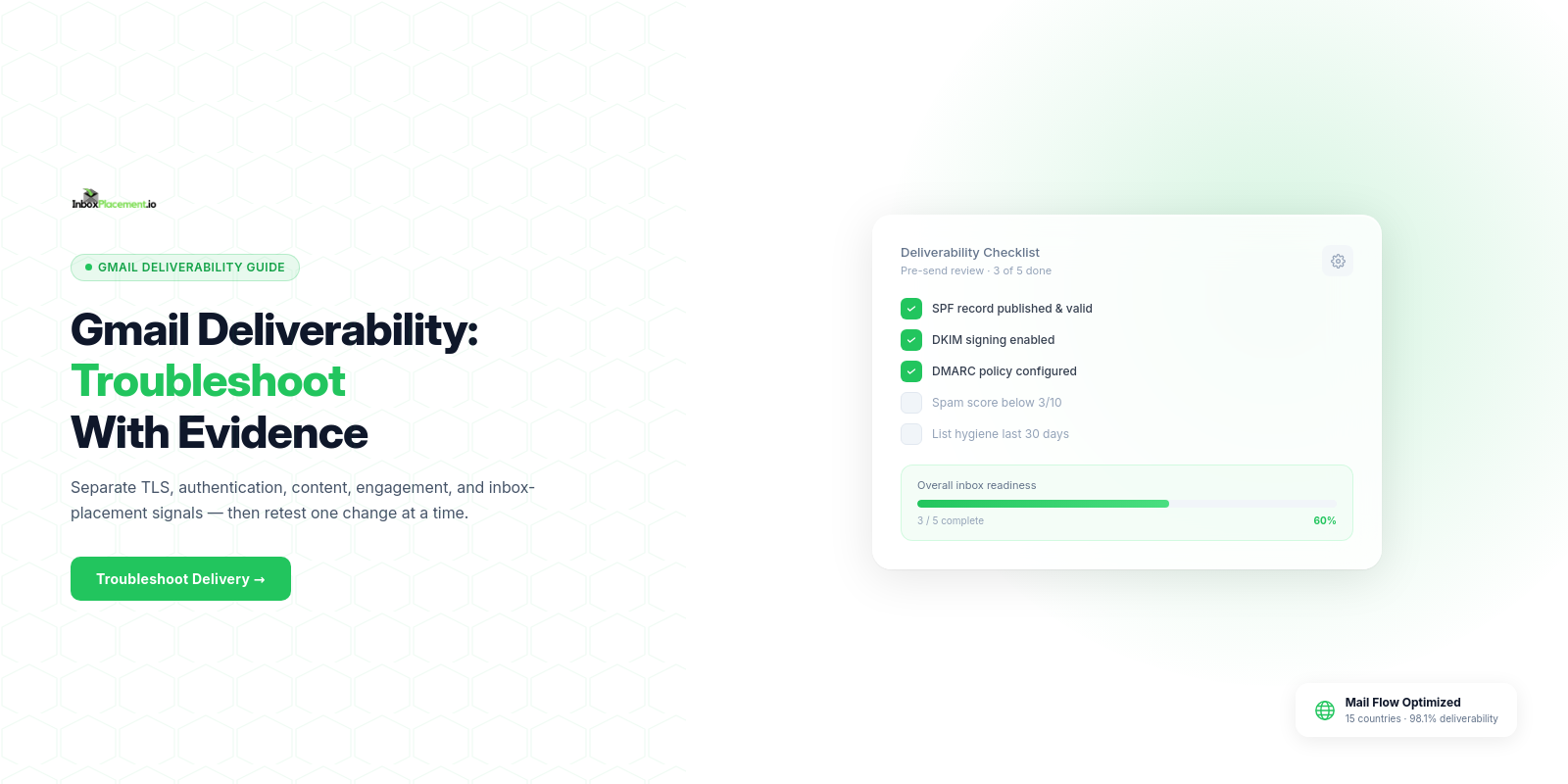
Direct answer
If Gmail is delaying, routing to Spam, or rejecting your mail, immediately verify transport/TLS, SPF/DKIM/DMARC configuration and alignment, and Gmail-specific signals such as Postmaster Tools and Compliance flags. These checks are the most actionable starting points when troubleshooting delivery problems to personal Gmail accounts. A focused email deliverability test can help you compare the message before and after each change.
When to use this guide
Use this workflow when you observe delivery failures, sudden complaint spikes, rejections or throttling for Gmail recipients, or whenever you’re sending at scale to personal Gmail accounts.
Core concepts (plain language)
- Observed evidence: The raw items you collect — SMTP bounce texts, server logs, message headers, the Authentication-Results header, Postmaster Tools metrics, and inbox vs spam placement from tests.
- Likely causes: Configuration errors, policy enforcement, content/engagement signals, or transient DNS/network issues.
- Safe actions: Non-destructive steps you can take quickly (require TLS, publish correct DNS records, pause suspect campaigns).
- Retest criteria: The specific checks you run after a change (new message headers showing authentication PASS, inbox placement test results, Postmaster Tools signal updates).
Important: keep these items separate when troubleshooting
Authentication-Results(the message header) — use this to read authentication outcomes reported by the receiving system.- DMARC authentication result — the
dmarc=value shown inAuthentication-Results(for example,pass,fail, ornone). - Published DMARC policy — the DNS TXT record value (
v=DMARC1; p=...) retrieved from authoritative DNS. - Receiver disposition/delivery action — bounce messages, SMTP reply codes, or delivery logs indicating reject/quarantine/delivered.
- Inbox placement — where the message landed (Inbox vs Spam) as shown by an inbox-placement test or recipient verification.
Do not conflate authentication checks with inbox placement: authentication is necessary but not sufficient for inbox placement.
Practical step-by-step workflow
For each step below, follow the sequence: Observed evidence → Likely cause → Safe action → Retest criteria.
1. Confirm immediate delivery behavior
- Observed evidence: SMTP bounce codes, delivery logs, recipient reports, or missing delivery confirmations.
- Likely causes: Remote rejection, throttling, or provider-side filtering.
- Safe action: Capture full SMTP delivery logs and the bounce text; stop broad resends until you understand the bounce type.
- Retest criteria: Reproduce the same bounce with a single diagnostic message and capture its headers and SMTP dialog.
2. Check transport security (TLS)
- Observed evidence: Mail server logs showing STARTTLS failures or warnings.
- Likely causes: Misconfigured or unsupported TLS on your outbound server or relay.
- Safe action: Configure and verify TLS for outbound mail per your mail server documentation; ensure certificate validity and supported protocols.
- Retest criteria: New outbound session logs show a completed TLS handshake to Gmail MX hosts.
3. Verify SPF, DKIM, and DMARC publishing and alignment
- Observed evidence: DNS TXT records for SPF and DMARC; DKIM public key present in DNS; Authentication-Results header entries showing SPF/DKIM/DMARC outcomes.
- Likely causes: Missing or malformed DNS records, SPF exceeding lookup limits, wrong DKIM selector, or
From:domain not aligned for DMARC. - Safe actions:
- If you do not yet publish a DMARC record, publish a DMARC record (monitoring
p=noneis acceptable for initial validation). If you already publish a DMARC policy with enforcement (p=quarantineorp=reject), do not weaken it—do not change that policy top=noneas part of troubleshooting. - Correct SPF and DKIM records as needed; ensure DKIM signing is enabled for outbound mail.
- Ensure the
From:domain aligns with either the SPF-authenticated envelope-from or the DKIMd=domain for direct mail to personal Gmail accounts.
- If you do not yet publish a DMARC record, publish a DMARC record (monitoring
- Retest criteria: New message headers (see Authentication-Results header) show SPF and/or DKIM pass and DMARC alignment as appropriate.
Note: SPF alone does not prevent spoofing. Use SPF + DKIM + DMARC together. See the Microsoft troubleshooting guidance in Sources for how these checks interact, and review DMARC monitoring guidance for the reporting side of the workflow.
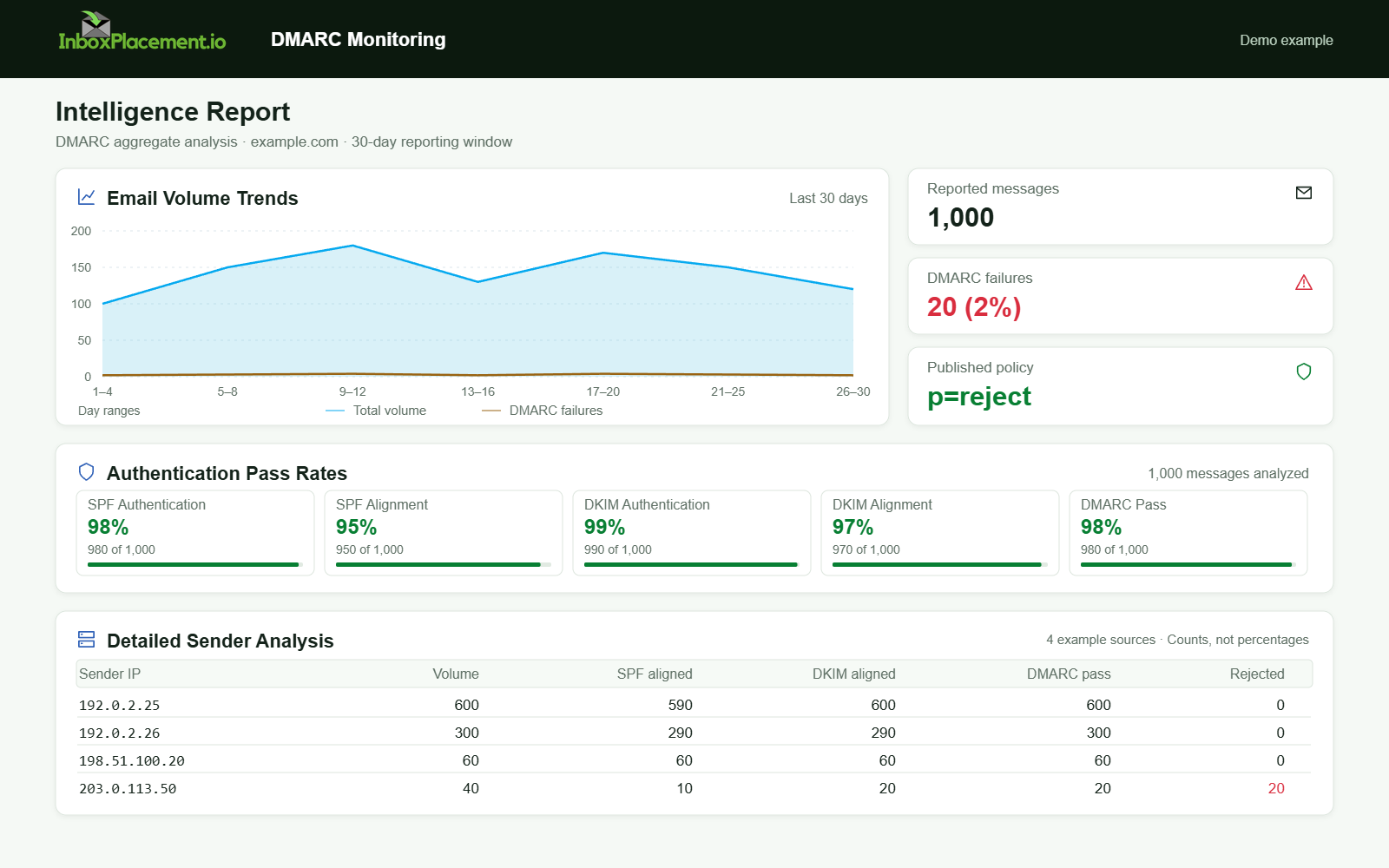
Demo example. DMARC policy and reported outcomes. Synthetic results for feature explanation; not a live test or customer outcome.
4. Inspect content and engagement signals
- Observed evidence: Complaint rates in provider dashboards, unsubscribe counts, recipient feedback.
- Likely causes: Low engagement, missing one-click unsubscribe for promotional messages, stale lists, or content triggering filters.
- Safe action: Pause or segment high-volume campaigns, add required unsubscribe options for promotional mail, remove stale addresses, and reduce frequency for low-engagement segments.
- Retest criteria: Placement improves in an inbox placement test and complaint metrics decrease in provider dashboards over subsequent sends (allow for processing lag).
5. Use provider tools and classification dashboards
- Observed evidence: Gmail Postmaster Tools metrics, Compliance dashboard flags, or enforcement notices.
- Likely causes: Elevated spam rates, enforcement triggers, or bulk-sender classification.
- Safe action: Register and review Gmail Postmaster Tools and the Compliance dashboard; follow the actionable guidance there. If flagged as a bulk sender, follow the Gmail sender requirements closely.
- Retest criteria: Postmaster Tools metrics and Compliance indicators move toward expected ranges after corrective actions.
What to capture from headers and DNS (instructions)
- Fetch and save the Authentication-Results header from a delivered message — record the full header text.
- Separately fetch the domain’s DMARC DNS TXT record from authoritative DNS and save the exact value (v=DMARC1; p=...).
- Save SPF TXT record and DKIM selector DNS TXT records from authoritative DNS responses.
- Save any SMTP bounce text and delivery SMTP dialog that includes server response codes.
- For placement, run an inbox placement test and save screenshots or exported results that show placement and the message headers used.
Decision checklist (quick triage)
-
SMTP 550 bounce with rejection text
- Observed evidence: bounce text and SMTP log
- Likely cause: provider rejection/policy block
- First safe action: Save headers and logs, pause the campaign
- Retest: Send one diagnostic message and capture headers
-
Headers show SPF fail, no SPF TXT
- Observed evidence: Authentication-Results and DNS absence
- Likely cause: Missing/invalid SPF record
- First safe action: Publish a correct SPF TXT record (watch DNS lookup limits)
- Retest: Check headers of a new message for SPF status in Authentication-Results
-
DKIM signature missing or fails
- Observed evidence: Missing or failing DKIM in headers
- Likely cause: DKIM not configured or mismatched key
- First safe action: Publish DKIM public key and enable signing
- Retest: New messages show DKIM pass in Authentication-Results
-
DMARC reports show failures
- Observed evidence: DMARC aggregate or forensic reports, Authentication-Results dmarc value
- Likely cause: SPF/DKIM not aligned with From:
- First safe action: Ensure From: aligns with SPF or DKIM domain. If you do not have a DMARC record, publish one. If you have an enforcing DMARC policy already, do not reduce enforcement.
- Retest: DMARC reports or
Authentication-Resultsshow alignment pass or indicate monitoring-only (p=none) if applicable
Illustrative examples (clearly labelled)
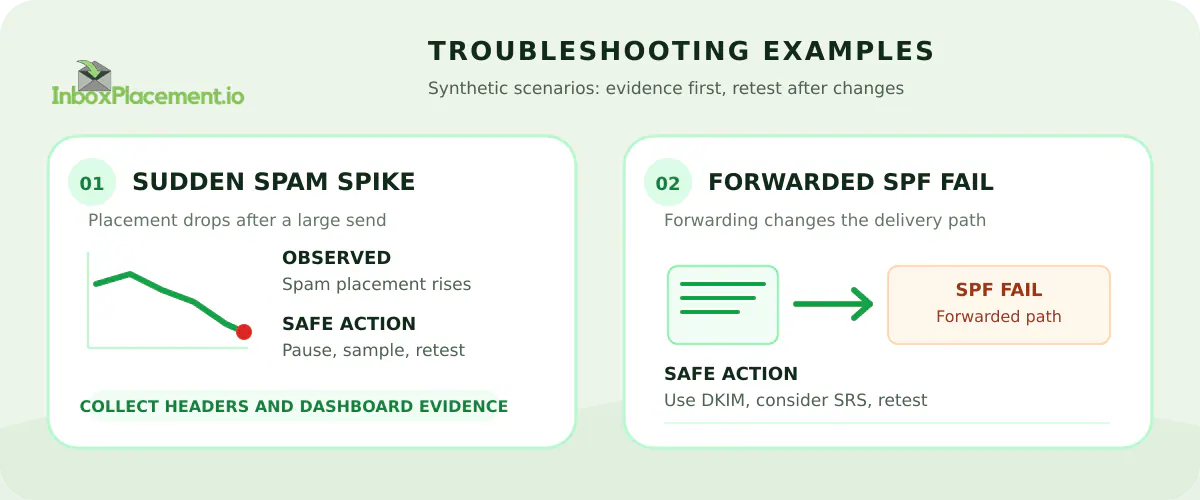
Illustrative scenarios only. Synthetic examples for explanation; not live Gmail data or customer results.
Illustrative example: sudden spike in Spam folder placement
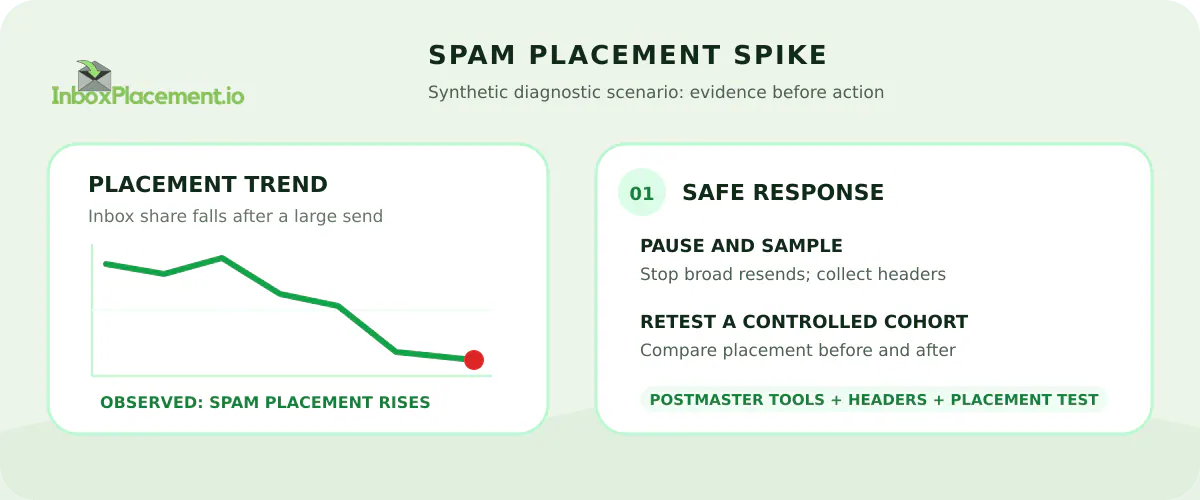
Illustrative scenario only. Synthetic example for explanation; not live Gmail data or a customer result.
- Observed evidence: Recipients report mail in Spam; Postmaster Tools spike.
- Likely causes: Recent large campaign to stale addresses or compromised account (illustrative).
- Safe actions: Pause the campaign, secure accounts, re-engage a small high-quality sample.
- Retest criteria: Send to a controlled cohort and run an inbox placement test; compare results before and after fixes.
- Evidence to collect: Export from Postmaster Tools showing the incident timeframe, inbox placement test results, and message headers for sample messages.
Illustrative example: forwarded messages failing SPF
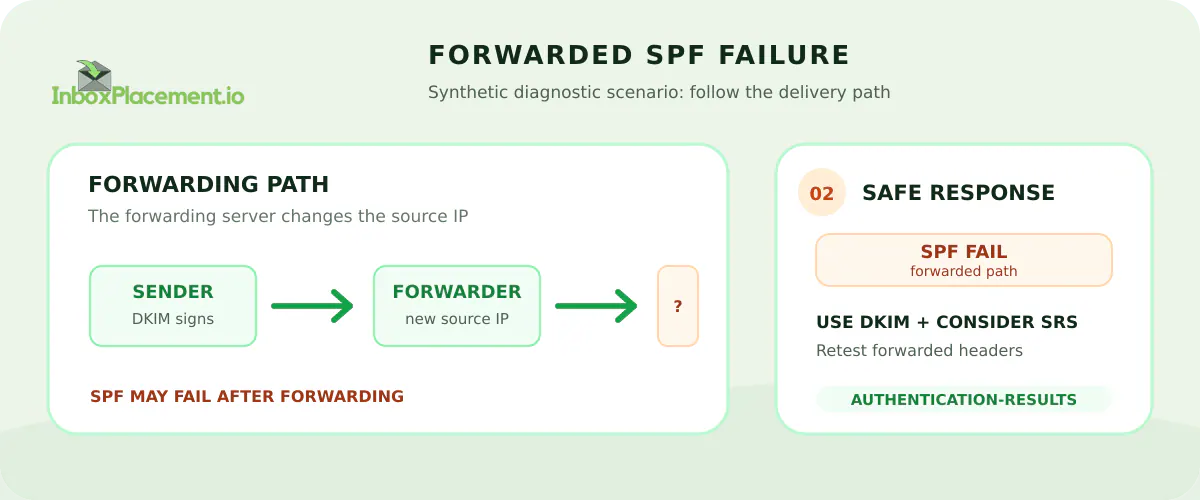
Illustrative scenario only. Synthetic example for explanation; not live Gmail data or a customer result.
- Observed evidence: Forwarded-message headers show SPF fail; recipients report delivery blocked.
- Likely cause: Forwarding server IPs are not covered by the original sender's SPF (illustrative).
- Safe action: Ensure DKIM signing is used (DKIM survives forwarding) and consider SRS on forwarding servers when possible.
- Retest criteria: Forwarded message headers show DKIM pass or SPF no longer causing delivery failures.
- Evidence to collect: Forwarded message headers showing Authentication-Results and DKIM signatures before and after fixes.
Common mistakes and limitations
Observed facts, likely causes, and safe actions must remain distinct. Common mistakes:
- Treating DNS/authentication checks as proof of inbox placement. Authentication checks do not prove inbox placement.
- Making simultaneous wide changes. Change one variable at a time so you can isolate effects.
- Ignoring provider dashboards. Use Gmail Postmaster Tools and Compliance dashboard signals.
What checks cannot prove
- Authentication checks do not prove inbox placement; they indicate only whether the message would pass authentication.
- A successful TLS handshake does not guarantee the message will not be filtered to Spam.
- Local DNS propagation does not prove provider-level enforcement will change immediately; mailbox providers often apply decisions after internal processing and aggregation.
Verification and next steps
-
Run focused retests after each change:
- Authentication: Send real messages and capture the Authentication-Results header and DKIM/SPF header fields from delivered messages.
- Placement: Run an inbox placement test targeting Gmail and save placements and headers.
- Dashboards: Export Gmail Postmaster Tools metrics and Compliance dashboard status for the relevant timeframe.
-
Evidence to collect before concluding:
- Authentication-Results header entries from multiple delivered test messages (save raw headers).
- Authoritative DNS TXT responses for SPF, DKIM selector records, and DMARC (full text of each record).
- Gmail Postmaster Tools exports showing spam/complaint rates and any Compliance dashboard flags.
- Inbox placement test results showing Inbox vs Spam and the associated headers.
-
How to interpret retests:
- If authentication now passes but placement remains Spam, focus on content, engagement, and complaint rates.
- If Postmaster Tools shows enforcement flags, follow the Gmail sender requirements and investigate the specific flags noted there.
FAQ
Why did my email show SPF pass but still land in Spam?
Observed evidence: SPF can pass while DKIM fails or DMARC alignment fails, or content/engagement signals cause filtering. Likely cause: SPF alone doesn’t guarantee placement—combine SPF, DKIM, and DMARC and review engagement metrics and content.
Do I need DMARC enforcement set to quarantine or reject?
If you do not yet have DMARC, publish a DMARC record (monitoring p=none is acceptable while you validate). If you already have an enforcing DMARC policy (p=quarantine or p=reject), do not weaken it as part of troubleshooting. Use Postmaster Tools and the Compliance dashboard to guide any policy adjustments.
How soon will Gmail enforcement affect my traffic?
Gmail’s published guidance and FAQ describe enforcement timelines and bulk-sender behavior; enforcement is provider-managed and may ramp over time. Check the Compliance dashboard in Postmaster Tools for any specific enforcement indicators for your domain.
Quick actionable reminder
Always collect and save the Authentication-Results header, authoritative DNS records for SPF/DKIM/DMARC, SMTP logs and bounce text, Postmaster Tools exports, and controlled inbox placement test results before and after changes. Keep Authentication-Results entries, the published DMARC policy, receiver disposition/delivery logs, and inbox placement as separate pieces of evidence.
Sources
- Gmail email sender guidelines — official Gmail guidance on sender requirements including SPF, DKIM, DMARC, TLS, and spam-rate expectations.
- Gmail email sender guidelines FAQ — notes about enforcement timeline, bulk sender classification, and the Compliance dashboard in Postmaster Tools.
- Troubleshoot email authentication in Microsoft 365 — guidance on interpreting SPF/DKIM/DMARC failures and common SPF troubleshooting causes.
- Yahoo Sender Requirements FAQ — context on enforcement and unsubscribe expectations for bulk senders.