
Outlook · Email Authentication · Deliverability
Outlook Email Deliverability Issues: A Practical Guide
· InboxPlacement.io Team
If Outlook is sending your mail to Junk, rejecting it, or quarantining it, treat authentication records and the Authentication-Results header as troubleshooting signals — not proof of inbox placement. Gather message evidence, check SPF, DKIM, DMARC, forwarding, content, and sending changes, then retest.
Direct answer and when this topic matters
Outlook email deliverability issues most commonly show as messages being routed to Junk, quarantined, or rejected. When that happens, check these signals in order: (1) the receiving system's trusted Authentication-Results entry, (2) whether SPF, DKIM, and DMARC are published and passing for the relevant sender identities, (3) recent changes to sending IPs or volumes, and (4) message content and available recipient or provider feedback. This topic matters when a campaign, infrastructure change, or rise in complaints coincides with increased Junk, quarantine, or rejection reports.
Core concepts in plain language
- Email authentication: Microsoft describes SPF, DKIM, DMARC, and ARC as complementary protections against forged senders. ARC can preserve authentication information when a message is changed in transit. Microsoft says using less than its full set of authentication methods gives substandard protection; that is a security recommendation, not a promise about message placement. See Microsoft's email authentication overview.
Authentication-Results: This header records authentication checks performed by an email system. Interpret the entry added within the receiving organization's trust boundary, and note its authentication-service identifier (authserv-id); a header with this name is not automatically trustworthy just because it appears in a message. See RFC 8601, the Authentication-Results header specification.- Keep three outcomes separate: an authentication result (such as
dmarc=pass), the domain's published DMARC policy (such asp=noneorp=reject), and the receiver's action (accept, quarantine, or reject) are different facts. The folder where a recipient sees a message — Inbox, Junk, or Quarantine — is a separate placement outcome. - A DMARC failure does not by itself prove that a receiver rejected or quarantined a message. The receiver's trace, bounce, or recipient-side report is better evidence of its action; the published DMARC policy is a request, not a guarantee of the final disposition.
- Why Outlook-specific checks matter: Microsoft says authentication failures can lead to legitimate mail being quarantined, rejected, or routed to Junk. This makes authentication a useful troubleshooting path, but not the only possible explanation. See Microsoft's authentication troubleshooting guidance.
- Provider requirements differ. For tests that include other mailbox providers, check the current Gmail sender guidelines and Yahoo sender requirements rather than assuming Outlook behavior applies everywhere.
A practical step-by-step workflow
-
Collect the evidence
- Collect full headers or the receiving organization's message trace for affected messages. Locate the receiving system's trusted
Authentication-Resultsentry and record itsauthserv-id. - Record the receiver's action (accepted, quarantined, or rejected), the recipient-reported folder (Inbox or Junk), and the published DMARC policy as separate observations.
- Record what changed recently: new ESP, new sending IP, template or link changes, or volume spikes.
- Collect full headers or the receiving organization's message trace for affected messages. Locate the receiving system's trusted
-
Read
Authentication-Results(what to look for)- SPF: did the receiver report
pass,fail,softfail,none, or an error, and which sender identity did it evaluate? - DKIM: was a signature present, did it verify, and which signing domain (
d=) did it use? - DMARC: did the receiver report
passorfail, and did an authenticated SPF or DKIM identity align with the visibleFromdomain? - ARC: are there ARC results when a forwarding service or mailing list changed the message?
- SPF: did the receiver report
-
Map observed outcomes to likely causes and safe actions (use the decision checklist/table below).
-
Apply fixes in order of least disruptive to most disruptive
- Ask the authorized mail or DNS administrator to verify SPF and DKIM configuration against the actual sending systems; do not add an unverified sender to DNS.
- Compare the SPF identity and DKIM signing domain with the visible
Fromdomain to diagnose alignment. - Do not change a published DMARC policy as a delivery workaround. Any policy change needs the domain owner's authorization, supporting alignment evidence, and a documented rollback plan.
- If forwarding may affect authentication, compare the original and final headers and ask the intermediary about its ARC handling.
- If message content or complaints may be involved, review the exact message and available provider feedback. Change one authorized factor at a time; follow applicable provider requirements for bulk or promotional mail.
-
Retest
- Send to a controlled seed set covering Outlook and other major providers.
- Recheck the trusted
Authentication-Resultsentry, receiver action, and reported folder separately. - Compare each controlled recipient's results; do not treat a successful test in one mailbox as proof of universal placement. See the Inbox Placement Testing 101 guide for a broader seed-test workflow.
Decision table: observed evidence → likely cause → safe action → retest criteria
| Observed evidence (from headers or traces) | Possible explanation (not a diagnosis) | First safe action | Retest evidence |
|---|---|---|---|
Trusted Authentication-Results reports spf=none | No SPF result was found for the identity the receiver evaluated; confirm which domain that was | Check the envelope sender domain (MAIL FROM) and its DNS record with the mail administrator. Authorize only verified sending services. | A new message shows the receiver's SPF result for the expected identity. |
spf=permerror or duplicate SPF TXT records | The record may exceed SPF's DNS lookup limit or contain conflicting records | Review the complete SPF record and included services; remove duplication only after confirming every legitimate sender. | A new message no longer reports permerror. |
spf=softfail or spf=fail | The evaluated sending IP may not be authorized, or the receiver may be checking a different sender identity than expected | Compare the reported identity and connecting IP with the sending provider. Have an authorized administrator update SPF only after confirming the service is legitimate. | SPF reports the expected result for a new message; record whether the receiver accepted it separately. |
dkim=none or dkim=fail | Signing may be disabled, a selector or key may be wrong, or a message may have changed after signing | Check the signing domain (d=), selector, DNS key, and outbound signing setup with the mail provider. | A new, unmodified message has a valid DKIM signature. |
dmarc=fail | Neither the evaluated SPF identity nor the DKIM signing domain was reported as passing in alignment with the visible From domain | Compare header.from, the SPF identity, the DKIM d= value, and the published DMARC policy separately. Fix authorized sender alignment; do not lower the policy as a quick fix. | A new message reports aligned SPF or DKIM and the receiver's action is recorded separately. |
| A trace reports quarantine or rejection despite passing authentication | Content, reputation, recipient policy, or another security control may be involved | Save the exact message, trace or SMTP response, recipient context, and available provider feedback. Ask the mailbox administrator to review applicable rules. | The next controlled test records both the receiver's action and the recipient-visible folder. |
| The receiver accepted the message, but the recipient reports Junk | Authentication may have passed while content, reputation, user rules, or provider filtering affected placement | Compare the same controlled message across mailboxes and review recipient-side rules and available provider feedback. Do not infer the cause from authentication alone. | Record placement per mailbox and provider; do not treat one Inbox result as universal. |
| Forwarded mail has different authentication results at the final receiver | Forwarding can change the connecting IP or message content; ARC may carry prior authentication information | Compare the original and final headers, inspect ARC results, and ask the intermediary how it handles authentication. | Recheck the final receiver's SPF, DKIM, DMARC, ARC, action, and folder as separate results. |
(Every scenario above is illustrative; do not treat a single header result as proof of inbox placement.)
Synthetic examples (clearly labelled)
- Synthetic example 1 — SPF error: Imagine a marketing domain whose SPF record exceeds the DNS lookup limit. A receiver might report
spf=permerror. After an authorized administrator reviews all legitimate senders and corrects the record, a controlled retest could confirm whether that result changed. This scenario is invented for explanation; it is not a live test or customer outcome. - Synthetic example 2 — New sending IP: Imagine a transactional service moving to a new sending IP that is not authorized for the evaluated SPF identity. A receiver might report
spf=failwhile DKIM passes. The domain owner should confirm the service and alignment before authorizing any DNS change, then verify a new message. This scenario is invented for explanation; it is not a live test or customer outcome.
Common mistakes and limitations
Observed evidence vs cause vs proof
- Observed evidence includes the receiving system's trusted
Authentication-Resultsentry, message trace or bounce, recipient-reported folder, DMARC reports, and controlled placement tests. - Common mistaken inference: treating a DKIM or SPF pass as proof that the message will appear in the Inbox. Authentication signals help address spoofing risk but do not guarantee placement.
- Limitation of header reads:
Authentication-Resultsrecords checks performed by an identified authentication service. It does not reveal the receiver's internal scoring, prove the final folder, or by itself explain why a message was placed in Junk. For a field-by-field walkthrough, see How to Read Email Headers for Deliverability.
Specific pitfalls to avoid
- Publishing multiple SPF TXT records for the same domain (causes permerror).
- Assuming SPF alone prevents spoofing — Microsoft's guidance describes SPF, DKIM, DMARC, and ARC as complementary methods.
- Weakening DMARC enforcement (
p=quarantineorp=reject) as a quick fix — any policy change needs authorization, a clear scope, and rollback criteria. - Not using reporting: DMARC aggregate and forensic reports provide evidence to diagnose sources of failed authentication.
- Repeating an SPF-pass/Junk diagnosis without distinguishing it from other outcomes. For that narrower case, see SPF Passes But Email Goes To Outlook Junk: Causes & Fixes.
How this topic connects to inbox placement
Authentication is one part of a receiver's assessment. Microsoft recommends SPF, DKIM, DMARC, and ARC as complementary protections; it also documents that authentication failures can lead to quarantine, rejection, or Junk. Neither statement means that a passing result guarantees the Inbox. Content, sender reputation, recipient rules, and provider-specific controls may also affect delivery or placement. For ongoing domain-authentication visibility, see the DMARC monitoring guide; for requirements outside Outlook, consult the current sender guidance for each provider.
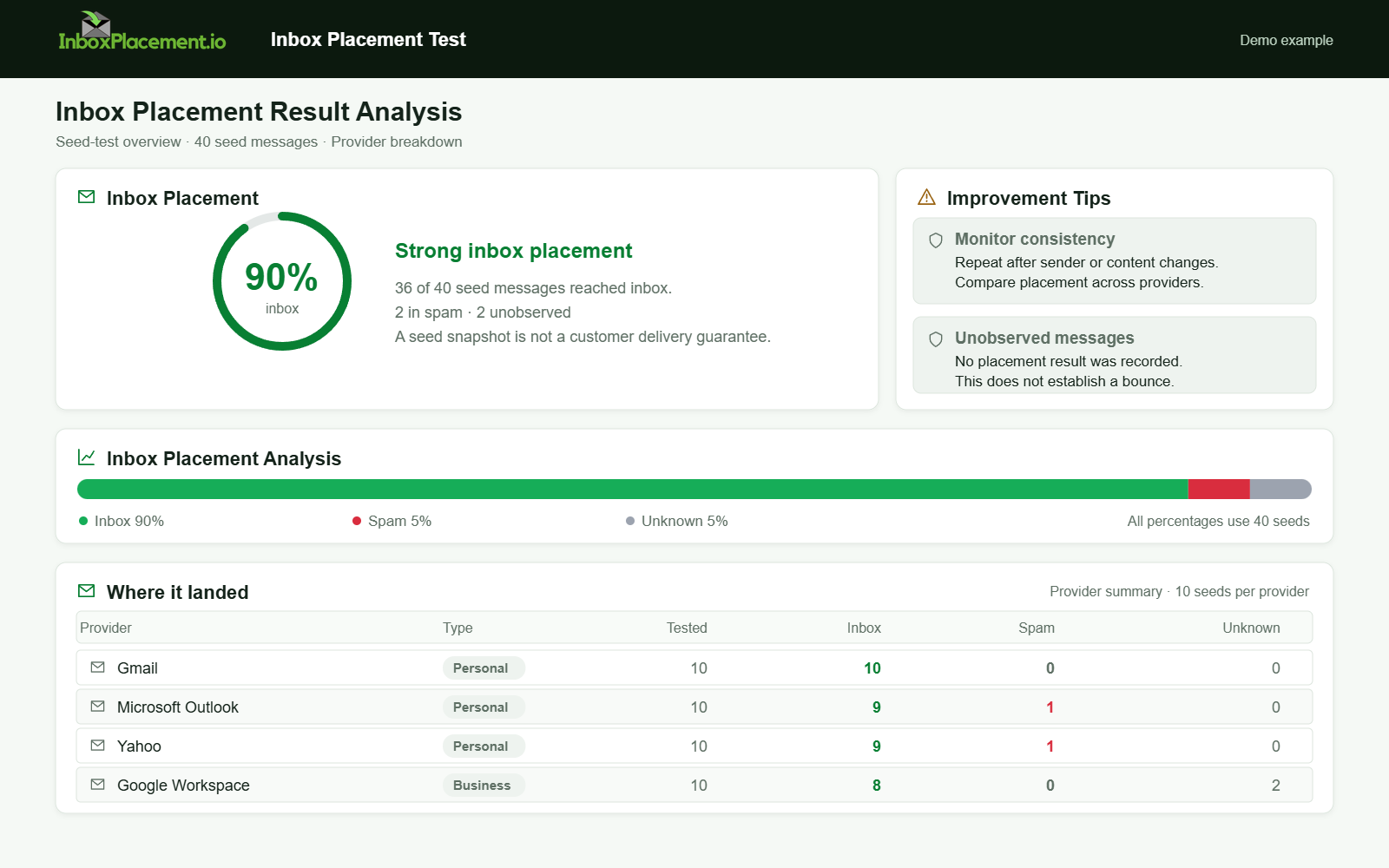
Demo example. Strong seed inbox placement. Synthetic results for feature explanation; not a live test or customer outcome.
Verification and next steps
What to collect before making changes
- Full headers containing the receiving system's trusted
Authentication-Resultsentry, plus the message trace or bounce if available. - The exact SPF, DKIM, and DMARC DNS records currently published.
- Recent sending IPs, ESP changes, and campaign volumes.
- DMARC aggregate reports (RUA) if you publish them.
Safe verification steps
- After fixing DNS records, allow DNS TTLs to expire where relevant before concluding changes took effect.
- Use a controlled seed test covering Outlook plus at least two other mailbox providers to compare behavior. See Inbox Placement Testing 101 for a broader testing workflow.
- Re-examine the trusted
Authentication-Resultsentry and compare receiver actions and reported folders separately.
What tests/reports cannot prove
Authentication-Resultsdoes not prove inbox placement; it reports the result of authentication checks performed by the identified service.- A DMARC pass does not guarantee that the message was delivered to the inbox rather than Junk — it is one input to the receiver’s final decision.
- DNS checks alone cannot prove long-term reputation or user-engagement signals.
Retest criteria (practical)
- The trusted
Authentication-Resultsentry shows the expected SPF and DKIM outcomes, with at least one aligned pass for DMARC. - Seed inboxes (including Outlook) show improved routing in at least the controlled test sends.
- DMARC aggregate reports show reduced authentication failures over several days.
FAQ
How does Authentication-Results help me troubleshoot Outlook delivery?
It records authentication checks performed by an email system. Identify the receiver's trusted entry and its authserv-id, then compare its SPF, DKIM, and DMARC results with the trace and recipient-reported folder. It is diagnostic, not a statement of final placement; RFC 8601 describes the header and its trust boundary.
If SPF passes but mail is in Junk, where should I look next?
Check DKIM and DMARC alignment, message content, available complaint or provider feedback, and recent sender or IP changes. Authentication is not the only placement signal. For the narrower SPF-pass/Junk symptom, see the focused Outlook Junk guide.
Can I temporarily set DMARC to p=none to fix delivery faster?
p=none is a monitoring policy, not an Inbox-placement fix. Do not weaken an existing enforcement policy (p=quarantine or p=reject) without explicit domain-owner authorization, a narrow scope, a time limit, and rollback criteria.
For a repeatable seed-test workflow, follow Inbox Placement Testing 101. Record authentication results, receiver action, and mailbox placement separately.
Sources
-
Microsoft: How email authentication works in Microsoft 365 — Defines SPF, DKIM, DMARC, and ARC as complementary authentication methods and describes their role in protecting against spoofing and phishing.
-
Microsoft: Troubleshoot email authentication in Microsoft 365 — Supports the listed SPF troubleshooting symptoms and notes that authentication failures can lead to quarantine, rejection, or Junk.
-
RFC 8601: Message Header Field for Indicating Message Authentication Status — Defines the
Authentication-Resultsfield, its authentication-service identifier, and the trust-boundary considerations for interpreting it. -
Google: Email sender guidelines FAQ — Provides context on provider-specific sender requirements and enforcement, including temporary or permanent rejections for non-compliant traffic.
-
Yahoo: Sender Requirements FAQ — Covers Yahoo sender enforcement and its recommendation for DMARC enforcement when a domain has a spoofing problem.