
DMARC · Email Security · Email Authentication · Email Deliverability
How to Fix 'DMARC Policy Not Enabled': The Safe Path to Quarantine and Reject
· InboxPlacement.io Team
Updated
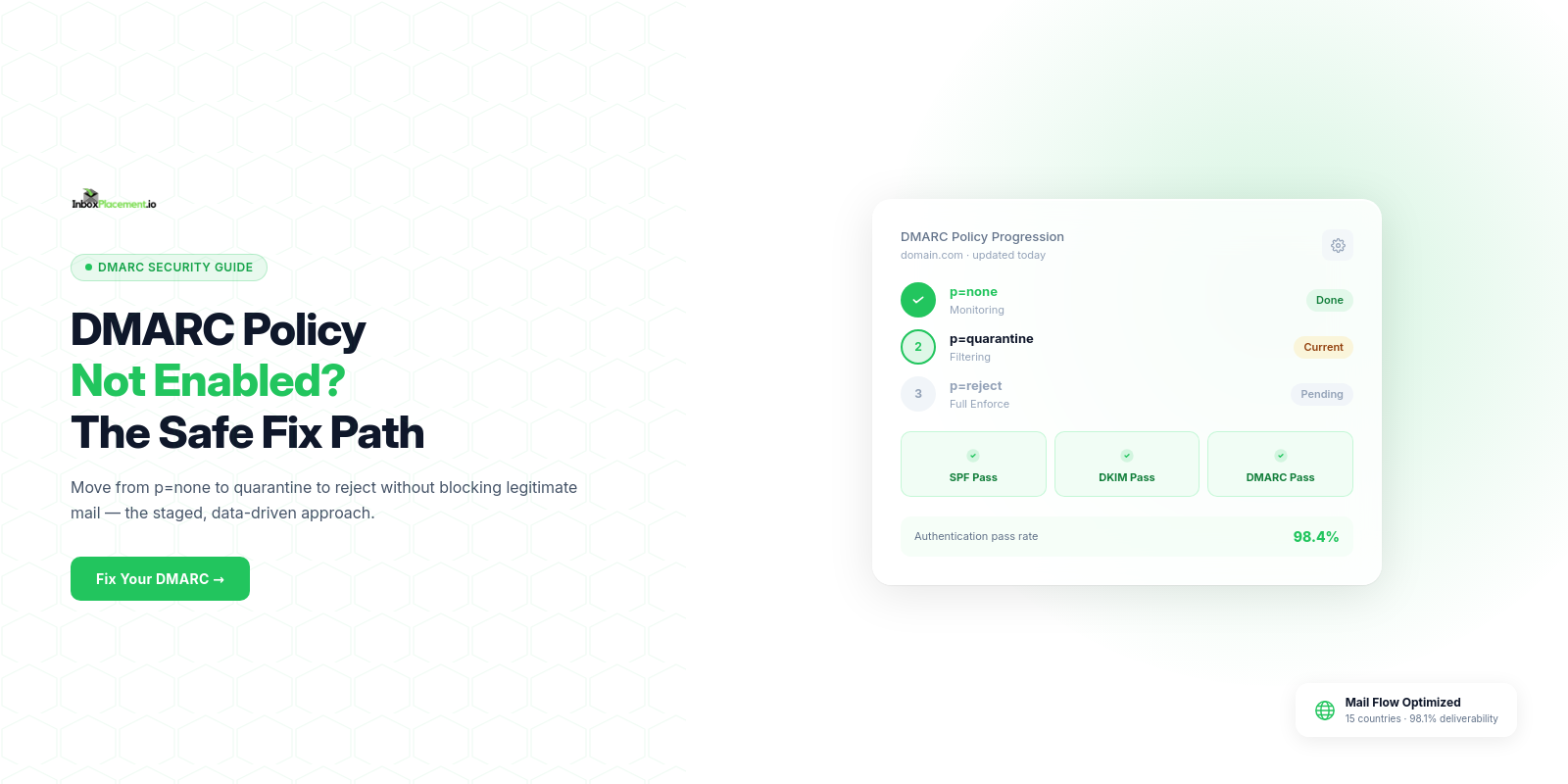
"DMARC policy not enabled" means your domain has a DMARC record, but it is set to p=none — a monitoring-only mode that collects reports without blocking or filtering any spoofed email. Your domain is not protected.
This warning appears in Google Search Console, MXToolbox, Plesk health monitors, and PCI DSS compliance scanners. It is not a catastrophic failure, but it is a real gap — anyone can send email pretending to be from your domain, and receivers will accept it.
This guide explains what the warning means, why p=none is not enough, and the exact steps to move safely toward enforcement.
What Does "DMARC Policy Not Enabled" Mean?
Every DMARC record contains a p= tag. That tag tells receiving mail servers what to do when an email fails DMARC authentication:
| Policy | DNS value | What happens to failing mail | Is the domain protected? |
|---|---|---|---|
| Monitor only | p=none | Delivered normally — no action taken | No |
| Quarantine | p=quarantine | Sent to spam or junk folder | Partially |
| Reject | p=reject | Blocked and not delivered at all | Yes |
When your record reads v=DMARC1; p=none;, receiving servers see the record, collect reports, and then do nothing with emails that fail. A spoofed email that impersonates your domain sails straight through.
The warning does not mean your DMARC record is missing. It means the record exists but is not enforcing anything. That is why scanners flag it as "not enabled."
Why p=none Is Not Enough
p=none is the correct starting point — but it was never meant to be permanent.
When you first publish a DMARC record, you need p=none to collect aggregate reports without risking your own legitimate mail. Those reports show you every source sending email on behalf of your domain: your ESP, your CRM, your invoicing tool, your helpdesk. Before you enforce, you need to know all of those sources are properly authenticated.
Staying at p=none indefinitely means:
- Spoofed emails from your domain reach inboxes
- Your brand can be used in phishing campaigns
- You remain non-compliant with Google and Yahoo bulk-sender requirements that now require DMARC at enforcement for high-volume senders
The Three DMARC Policies Explained
p=none — Monitoring mode
v=DMARC1; p=none; rua=mailto:dmarc@yourdomain.com;
Use this when you have just published your first DMARC record. You will start receiving aggregate reports (RUA) from receivers showing authentication pass and fail rates by sending source. Do not skip this stage. Moving straight to enforcement without reports will blind you to legitimate mail sources you have not authenticated yet.
p=quarantine — First enforcement stage
v=DMARC1; p=quarantine; pct=10; rua=mailto:dmarc@yourdomain.com;
Quarantine tells receivers to send failing mail to spam or junk instead of the inbox. The pct= tag lets you enforce gradually — pct=10 applies the policy to 10% of failing mail, leaving 90% delivered normally while you monitor for problems. Increment pct over time as you verify no legitimate mail is caught.
Move to quarantine only when you have verified that all legitimate sending sources pass SPF and DKIM alignment in your reports.
p=reject — Full enforcement
v=DMARC1; p=reject; rua=mailto:dmarc@yourdomain.com;
Reject tells receivers to block unauthenticated mail entirely — it never reaches the recipient. This is the goal, but premature rejection can block your own legitimate emails if any sending source is not yet properly authenticated.
Move to reject only after running at p=quarantine with pct=100 for at least 30 days with no unexpected failures.
How to Fix "DMARC Policy Not Enabled" Step by Step
Step 1 — Confirm your current DMARC record
Run a DNS lookup for your domain's DMARC record:
dig TXT _dmarc.yourdomain.com
Or use a free tool like MXToolbox DMARC Lookup. You should see a TXT record at _dmarc.yourdomain.com with v=DMARC1.
If no record exists, you need to publish one before proceeding.
Step 2 — Verify SPF and DKIM are passing
DMARC enforcement only works if SPF or DKIM (or both) are aligned with your From domain. Check:
- Your SPF record exists at your root domain and includes all sending services
- DKIM signing is enabled in your ESP, CRM, and any other sending tool
- Your aggregate DMARC reports show high pass rates — aim for 95% or above before enforcing
Step 3 — Review your DMARC aggregate reports
Aggregate reports (RUA) arrive as XML attachments from major receivers. They list every IP address sending on behalf of your domain and the DMARC result for each source. Look for:
- Any sending source with a low pass rate that you have not authenticated yet
- Third-party services (marketing platforms, ticketing tools) that are sending from your domain
- Any sources you do not recognise — those may already be spoofing your domain
Step 4 — Authenticate all legitimate sending sources
Before enforcing, every service sending email on behalf of your domain must pass DMARC:
- Add each service's sending IPs to your SPF record
- Enable DKIM signing in each service's settings
- Confirm the DKIM selector is publishing in DNS
Do not rush this step. Missing one legitimate source and then enforcing will block real mail.
Step 5 — Move to quarantine with a low pct
Once your reports show 95%+ pass rates across all sources, update your DMARC record to:
v=DMARC1; p=quarantine; pct=10; rua=mailto:dmarc@yourdomain.com;
Monitor for at least two weeks. Check that no legitimate mail appears in spam reports. Increment pct by 10–25 points every two weeks until you reach pct=100.
Step 6 — Move to reject
After running at p=quarantine; pct=100 for at least 30 days with no unexpected failures:
v=DMARC1; p=reject; rua=mailto:dmarc@yourdomain.com;
At this point the "DMARC policy not enabled" warning disappears from all scanners. Your domain is protected.
Common Mistakes to Avoid
🚫 Publishing the record at the wrong hostname. The DMARC record must be at _dmarc.yourdomain.com, not at the root domain or www.
🚫 Having two DMARC records. Only one TXT record is allowed at _dmarc.yourdomain.com. Duplicates cause DMARC to fail entirely.
🚫 Skipping SPF and DKIM alignment. p=quarantine and p=reject only protect you if at least one of SPF or DKIM aligns with the From header domain. Publishing a stricter policy without alignment blocks your own mail.
🚫 Going straight from none to reject. This is the most common cause of legitimate mail being blocked. Always use quarantine with a low pct first.
🚫 Adding a reporting address without monitoring it. If your RUA reports pile up unread, you are flying blind. Use a DMARC monitoring tool to parse and display report data.
🚫 Forgetting subdomains. If your organisation sends from subdomains like mail.yourdomain.com or hello.yourdomain.com, add a sp= tag or publish separate DMARC records for those subdomains.
Frequently Asked Questions
What does "DMARC policy not enabled" mean?
It means your DMARC record exists but uses p=none, which monitors email authentication without blocking or filtering any mail. Your domain is not protected against spoofing. To enable enforcement, you need to change the policy to p=quarantine or p=reject once all legitimate sending sources are properly authenticated.
Is p=none safe to leave permanently?
No. p=none is the correct starting point for collecting data, but it provides no protection. Anyone can send email from your domain and receivers will deliver it. Google and Yahoo bulk-sender requirements now mandate DMARC, and some compliance frameworks require enforcement-level policies.
How long does it take to move from none to reject?
For most domains with one or two sending services, the full journey takes 60–90 days:
- 2–4 weeks at
p=nonecollecting reports and fixing authentication issues - 4–8 weeks stepping
p=quarantinefrompct=10topct=100 - 30 days at
p=quarantine; pct=100before moving to reject
Can DMARC enforcement block my own emails?
Yes — if any legitimate sending service is not properly SPF- or DKIM-aligned before you enforce. That is why you must review reports and authenticate all sources before changing the policy. The gradual quarantine approach with pct= limits the impact of any missed source.
Should I use quarantine or reject?
Start with quarantine. It gives you a safety net — failing mail goes to spam rather than being lost entirely. Move to reject only after running at full quarantine for at least 30 days with no unexpected failures. Many security teams consider full quarantine acceptable for lower-risk domains.
How do I know when my domain is ready for reject?
Your DMARC aggregate reports should show 95% or higher pass rates across all sending sources for at least 30 consecutive days at p=quarantine; pct=100. If any legitimate source is still failing, fix it before enforcing reject.
Monitor Your DMARC Progress
Manually reading DMARC XML reports is tedious and error-prone. InboxPlacement.io's DMARC monitoring parses your reports automatically, maps every sending source, flags authentication failures, and shows your enforcement readiness score — so you know exactly when it is safe to advance your policy.
Related: When to Change Your DMARC Policy: The Safe Path from p=none to p=reject · The Complete Guide to DMARC Monitoring in 2025 · Domain Forensic Analysis: What Your Domain Reveals About Email Risk