
SMTP · Email Delivery · Troubleshooting · Email Configuration
SMTP Test Tool: Troubleshoot Email Delivery Issues Fast
· InboxPlacement.io Team
Updated
Introduction
Your emails aren't sending. Error messages fill your logs. Customers aren't receiving critical notifications. SMTP (Simple Mail Transfer Protocol) issues are silently killing your email delivery—but most businesses don't know how to diagnose them.
An SMTP test tool solves this by testing your mail server configuration and identifying exactly what's broken.
What is SMTP Testing?
SMTP is the protocol that sends emails from your server to recipients' mail servers. SMTP diagnostics verify:
✓ Server connection and authentication
✓ Port configuration (25, 587, 465)
✓ TLS/SSL encryption setup
✓ DNS records (MX, SPF)
✓ Firewall and network issues
When SMTP fails, emails simply don't send—no matter how perfect your content is.
Common Email Delivery Issues (And How to Fix Them)
1. SMTP Authentication Failed
Error: "535 Authentication credentials invalid"
Causes:
❌ Wrong username/password
❌ Two-factor authentication blocking SMTP
❌ App-specific password required (Gmail, Outlook)
Fix:
✓ Verify credentials in your email platform
✓ Generate app-specific password
✓ Enable "less secure apps" if necessary (not recommended long-term)
2. Connection Refused
Error: "Connection refused on port 587"
Causes:
❌ Wrong SMTP port
❌ Firewall blocking outbound connections
❌ ISP blocking port 25
Fix:
✓ Try port 587 (TLS) or 465 (SSL)
✓ Check firewall rules
✓ Contact hosting provider about port restrictions
3. TLS/SSL Certificate Errors
Error: "SSL certificate verification failed"
Causes:
❌ Expired certificate
❌ Self-signed certificate rejected
❌ Hostname mismatch
Fix:
✓ Update SSL certificate
✓ Use valid certificate from trusted authority
✓ Match certificate hostname to SMTP server
4. Relay Access Denied
Error: "550 Relay access denied"
Causes:
❌ SMTP server not configured to relay for your domain
❌ IP address not authorized
❌ Authentication required but not provided
Fix:
✓ Enable SMTP authentication
✓ Whitelist sending IP address
✓ Configure relay permissions on mail server
5. DNS/MX Record Issues
Error: "Host not found" or "MX record lookup failed"
Causes:
❌ Missing or misconfigured MX records
❌ DNS propagation not complete
❌ Typo in domain name
Fix:
✓ Verify MX records in DNS
✓ Wait 24-48 hours for DNS propagation
✓ Check domain spelling in configuration
How to Test SMTP Server Connection (3 Methods)
Method 1: Online SMTP Test Tool
Use InboxPlacement.io's SMTP tester:
✓ Enter SMTP server address (smtp.gmail.com)
✓ Select port (587, 465, or 25)
✓ Provide authentication credentials
✓ Click "Test Connection"
Results show:
✓ Connection successful
✓ Authentication passed
✓ TLS encryption working
❌ Specific errors with fixes
Method 2: Command Line Testing (Advanced)
telnet smtp.yourdomain.com 587
EHLO yourdomain.com
STARTTLS
AUTH LOGIN
[base64 encoded username]
[base64 encoded password]
MAIL FROM:<sender@yourdomain.com>
RCPT TO:<recipient@example.com>
DATA
Subject: Test
This is a test.
.
QUIT
Method 3: Email Platform Testing
Most ESPs (SendGrid, Mailgun, Amazon SES) provide built-in SMTP testing in their dashboards.
SMTP Port Guide: Which Should You Use?
Port 25 (Legacy, Not Recommended)
❌ Original SMTP port
❌ Often blocked by ISPs
❌ No encryption
❌ Use only if no other option
Port 587 (Recommended for Submission)
✓ Modern standard (STARTTLS)
✓ Requires authentication
✓ TLS encryption
✓ Best choice for most senders
Port 465 (SSL/TLS)
✓ Implicit SSL
✓ Secure from connection start
✓ Good alternative to 587
Port 2525 (Alternative)
⚠️ Non-standard but commonly supported
⚠️ Useful when 587 is blocked
⚠️ Check ESP support first
SMTP Configuration Checklist
Server Settings:
☑ SMTP server address correct
☑ Port matches encryption type
☑ Authentication enabled
☑ Valid credentials configured
DNS Records:
☑ MX records published
☑ SPF record includes SMTP server
☑ DKIM enabled and published
☑ DMARC policy active
Security:
☑ TLS/SSL encryption enabled
☑ Valid SSL certificate
☑ Strong password
☑ IP whitelisting (if required)
Testing:
☑ Test email sends successfully
☑ No errors in SMTP logs
☑ Email reaches inbox (not spam)
☑ Authentication headers correct
Troubleshooting Tips for Common ESPs
Gmail/Google Workspace:
✓ Use smtp.gmail.com, port 587
✓ Enable "Less secure apps" or use app password
✓ Error "Username and password not accepted" = app password needed
Microsoft 365/Outlook:
✓ Use smtp.office365.com, port 587
✓ Requires modern authentication (OAuth2)
✓ Check "SMTP AUTH" is enabled in admin panel
SendGrid:
✓ Use smtp.sendgrid.net, port 587
✓ Username is always "apikey"
✓ Password is your actual API key
Amazon SES:
✓ Regional endpoints (smtp.us-east-1.amazonaws.com)
✓ Generate SMTP credentials in IAM
✓ Must verify sending domain first
SMTP Error Codes Quick Reference
4xx (Temporary Errors - Retry Later):
⚠️ 421: Service not available
⚠️ 450: Mailbox unavailable
⚠️ 451: Server error
5xx (Permanent Errors - Fix Required):
❌ 535: Authentication failed
❌ 550: Mailbox not found / Relay denied
❌ 554: Transaction failed
Best Practices for Reliable SMTP
1. Use Dedicated SMTP Service
Don't rely on shared hosting SMTP. Use professional ESPs (SendGrid, Mailgun, Amazon SES) for better deliverability.
2. Monitor SMTP Logs
Review logs weekly for errors, failed authentications, or suspicious activity.
3. Implement Retry Logic
Automatically retry failed sends with exponential backoff (5 min, 15 min, 1 hour).
4. Set Up Alerts
Get notified when SMTP errors spike above normal levels.
5. Test Regularly
Weekly SMTP connection tests catch configuration drift and certificate expiration.
When to Use SMTP vs. API
Use SMTP when:
✓ Sending from existing email clients
✓ Legacy application integration
✓ Low volume (<10k emails/month)
Use API when:
✓ High volume (10k+ emails/month)
✓ Need detailed analytics
✓ Programmatic sending
✓ Better error handling required
Common SMTP Testing Questions
What is SMTP testing?
SMTP testing is the process of verifying that your mail server's outbound connection, authentication, TLS encryption, and DNS configuration are working correctly — before those issues cause silent delivery failures in production sends.
How do I test my SMTP server?
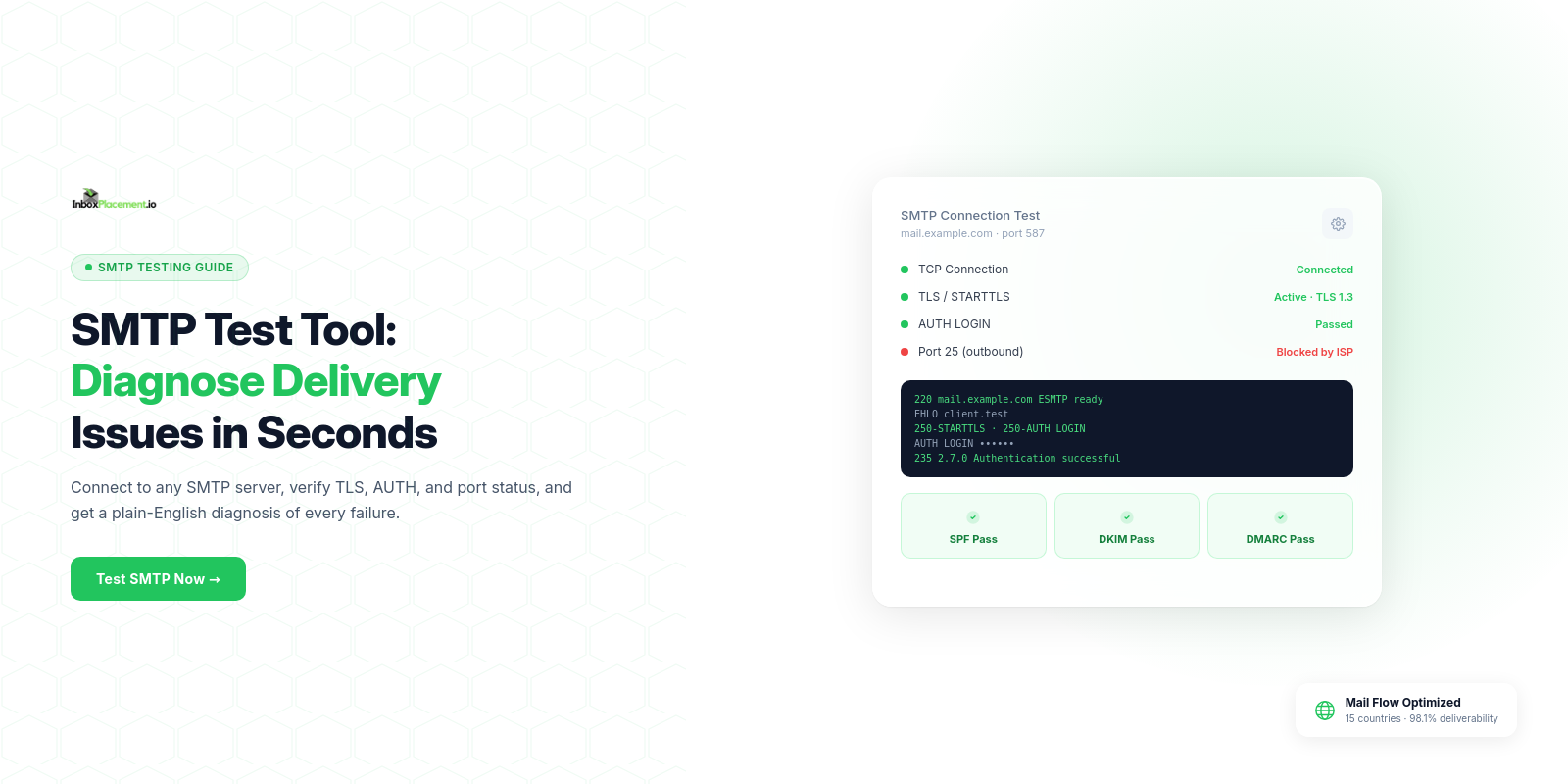
Use an SMTP test tool like InboxPlacement.io: enter your SMTP hostname, port, and credentials, and the tool attempts a full connection sequence — TCP handshake, EHLO, STARTTLS, AUTH — then reports the result for each step. You can also test manually using the telnet or openssl command-line tools.
What SMTP ports should I use?
Port 587 with STARTTLS is the recommended standard for authenticated submission. Port 465 with SSL/TLS is a legacy alternative still supported by many ESPs. Port 25 is reserved for server-to-server relay and is blocked by most ISPs for outbound sending from business connections.
Why are my emails not being delivered via SMTP?
The most common causes are authentication failures (wrong username or password), TLS negotiation errors, the sending IP being blacklisted, missing or incorrect SPF/DKIM records, or the receiving server rejecting the connection due to reputation. An SMTP test reveals which step is failing.
How often should I test my SMTP configuration?
Test whenever you change your mail server settings, switch ESPs, add a new sending domain, or notice a drop in deliverability. For high-volume senders, automated daily monitoring catches configuration drift before it affects campaigns.
Conclusion
SMTP issues silently destroy email delivery, but they're easy to fix with proper SMTP diagnostics. Regular testing with an SMTP test tool ensures your mail server configuration stays healthy and emails reach their destination.
Test your SMTP configuration now. InboxPlacement.io's SMTP tester checks connection, authentication, encryption, and DNS in under 30 seconds. Start your test today and fix email delivery issues fast.