
Gmail · Deliverability · Email Authentication
What Does Queued Mean In Gmail: A Practical Guide
· InboxPlacement.io Team
In Gmail, a "Queued" message may still be waiting in the sending app's Outbox, or a sending service may be retrying after a receiving server's temporary SMTP deferral. Those are different stages: the Gmail app's status alone does not prove that Google or another recipient server has accepted the message. First identify whether the message is still in Gmail's Outbox or whether your sending service has an SMTP response to diagnose.
Direct answer and when this topic matters
"Queued" is not a single SMTP result. If Gmail shows a message in the Outbox, it may not have finished sending from the app; that display alone does not identify a remote server response. Separately, an SMTP 4xx response means the receiving server temporarily deferred that delivery attempt, while a 5xx response is a rejection. Use the evidence from the stage where the message is waiting to choose the next step. Investigate when delays affect time-sensitive mail or multiple messages remain queued or start failing.
Core concepts in plain language
- Queued = not yet accepted/processed for final delivery. It is not the same as "delivered" or "spam"; it is a temporary queue state.
- Authentication vs. delivery vs. placement: SPF, DKIM, and DMARC are authentication signals.
Authentication-Resultsis the header that reports how those checks evaluated for a given message. Authentication success helps receivers make decisions but does not by itself guarantee delivery or inbox placement. - Provider rules and rate limits: Gmail and other providers enforce sending requirements (TLS, SPF/DKIM, DMARC alignment, spam‑rate thresholds) and may temporarily defer or reject mail that appears non‑compliant.
- Observable signals you can collect: SMTP response codes from the receiving server, the
Authentication-Resultsheader after delivery, bounce or rejection error codes, Postmaster Tools metrics (for Gmail), and any provider feedback loops (e.g., Yahoo's Complaint Feedback Loop).
Note: Authentication checks (pass/fail), published DMARC policy (p=none/quarantine/reject), receiver disposition, and inbox placement are separate signals. Do not treat one as proof of another.
A practical step-by-step workflow
Collect these items first (what to gather before troubleshooting)
- The exact SMTP transaction log or SMTP response code from the send attempt(s).
- Timestamps showing when the message was queued and when subsequent events occurred.
- Message headers including the
Authentication-Resultsheader (if delivered). - Sending IP and
From/domain used. - Recent sending volume and whether you are classified as a bulk sender by Gmail (see Sources).
Step 1 — Confirm where the queue is
- If Gmail shows the message in the Outbox, check the app's connection and sync status and whether the message leaves the Outbox after sending is retried. Do not infer a remote SMTP deferral from the Gmail UI label.
- If you send through an ESP or mail server, check its outbound SMTP transaction logs to see whether the message is still awaiting retry or a receiving server returned a response. Record the exact 4xx temporary response or 5xx rejection and its text.
Step 2 — Inspect authentication and transport
- Review SPF and DKIM for the sending domain and check the
Authentication-Resultsheader after delivery. Remember:Authentication-Resultsreports the receiver’s evaluation but cannot prove inbox placement. - Confirm your server uses TLS for outgoing connections; Gmail's sender guidelines require the use of TLS for transmitting email.
Step 3 — Compare against provider sender requirements
- Use Postmaster Tools (Gmail) to check spam rates and compliance dashboards if you are sending at scale. Gmail has published sender requirements including authentication and spam‑rate guidance.
- If sending to Yahoo domains, review Yahoo's sender FAQs about bulk senders and DMARC enforcement.
Step 4 — Apply safe, prioritized actions
- If the SMTP response indicates temporary deferral (4xx), wait and retry per standard SMTP retry policy while reducing traffic if necessary.
- Correct any failed authentication (fix SPF records, sign with DKIM, ensure
From:alignment with SPF/DKIM for DMARC). - If you suspect rate limits, reduce concurrent connections or per‑recipient sending rate and stagger retries.
Step 5 — Retest and verify
- After corrective steps, resend a small set of messages and collect the same logs and
Authentication-Resultsfor comparison. - Use an inbox placement test (see CTA) to confirm authentication headers and where mail lands.
Decision checklist (quick triage)
| Observed evidence | Likely cause (illustrative) | Immediate safe action |
|---|---|---|
SMTP 421/451 responses or repeated 4xx | Receiver temporarily deferring (load/rate/policy) — illustrative | Back off retries, reduce sending rate, wait and retry per SMTP policy |
SMTP 550/5xx rejection with code | Permanent rejection (policy/authentication) | Read error code text, fix auth or content, do not resend until resolved |
Authentication-Results shows SPF/DKIM fail | Misconfigured SPF/DKIM or misaligned From | Fix DNS records and signing; avoid weakening DMARC policy |
| Messages accepted but appear in spam | Content or reputation signals | Review content, unsubscribe options, and reputation signals; then retest |
(Every "Likely cause" row above is labelled illustrative and requires your logs to confirm.)
Examples clearly labelled as illustrative
Illustrative example A — SMTP 451 server busy
- Observed: outbound log shows "
451 4.3.0 Try again later" and then retries. - Illustrative interpretation: Gmail or an intermediate relay temporarily deferred due to transient load or throttling.
- Illustrative safe action: honor retry backoff and reduce parallel connections.
Illustrative example B — Authentication‑related rejection
- Observed: immediate 550 with text referencing "authentication" and
Authentication-Results(if present) showsDKIM=fail. - Illustrative interpretation: DKIM signing problem or wrong selector.
- Illustrative safe action: correct DKIM signing setup; do not change DMARC enforcement to weaker settings without strict change control.
Common mistakes and limitations
Observed facts vs. likely causes vs. recommended actions
- Observed fact: "Message status is queued on send." (What you can observe.)
- Likely causes: transient network/load issues; provider rate limiting; authentication failure leading to deferral or rejection; sender reputation or policy enforcement. (These are plausible, not proven, without logs.)
- Recommended actions: collect logs, inspect SMTP codes, verify SPF/DKIM/DMARC, check TLS usage, and reduce sending load if needed.
Limitations
- A DNS or authentication check alone does not prove inbox placement or final delivery.
Authentication-Resultsshows how the receiver evaluated authentication; it does not show whether the message will land in the inbox or spam folder.- Provider dashboards (Postmaster Tools) report trends and thresholds; they do not reveal per‑message routing decisions until you have message headers or bounce codes.
Do not:
- Weaken an existing DMARC enforcement policy as a troubleshooting shortcut. Any emergency, temporary change to a DMARC policy must be explicitly authorized by domain owners, narrowly scoped, have a time limit, and include rollback criteria.
How queued states connect to inbox placement
Observed queueing can be an early symptom of deliverability issues, but it is not conclusive:
- Queued due to transient load — may resolve with retry and not affect placement.
- Queued or deferred because of authentication failures or policy enforcement — requires fixing auth and policies; unresolved, these can lead to rejection or placement changes.
- Large‑scale queuing or permanent rejections may indicate provider enforcement (spam rates, bulk sender checks). For Gmail, sender requirements and enforcement timelines are published; use Postmaster Tools to monitor your compliance status.
Remember: authentication and proper transport (TLS, SPF/DKIM/DMARC alignment) are required signals cited in Gmail's sender guidance; they help receivers make placement decisions but do not by themselves guarantee inbox placement.
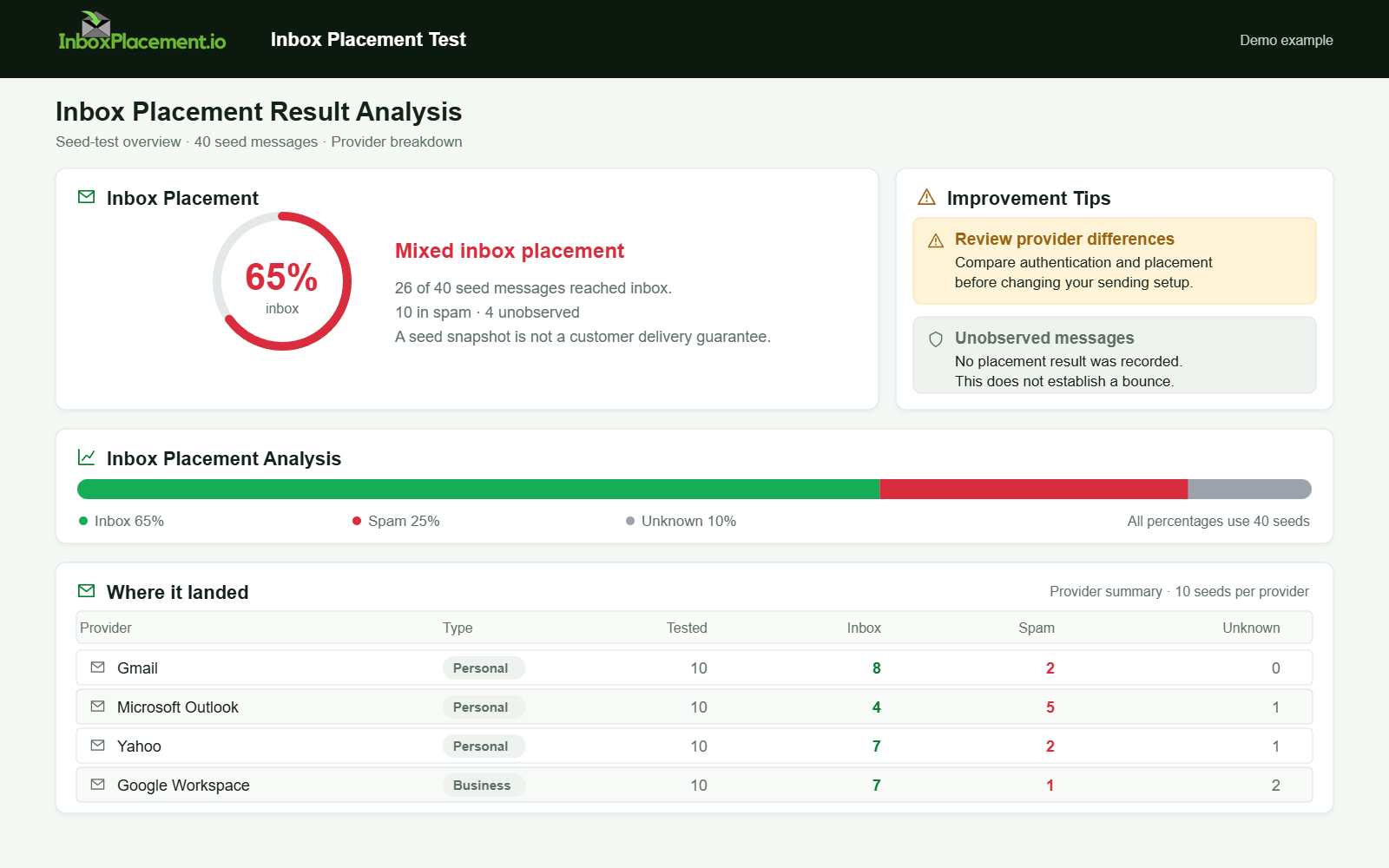
Demo example. Mixed placement across providers. Synthetic results for feature explanation; not a live test or customer outcome.
Verification and next steps
What to collect for a proper verification cycle
- SMTP transaction logs with timestamps and response codes.
- Message headers including
Authentication-Resultsfor delivered messages. - Sending IP, domain, and recent volume changes.
- Postmaster Tools data if available, and any provider feedback loop reports.
Retest criteria (when to declare a fix)
Authentication-Resultsshows expected SPF/DKIM/DMARC results for new test sends.- SMTP transaction logs show acceptance (250) or an informative rejection code rather than temporary 4xx deferrals.
- After fixes, resend representative messages and confirm similar messages are accepted and show stable headers.
What Authentication-Results cannot prove
- The
Authentication-Resultsheader cannot prove inbox placement or user interaction. It records the receiver's authentication checks result for a message and is one piece of evidence, not a final verdict on delivery quality.
Sources
-
Gmail sender requirements and guidelines (Gmail's support documentation) — this source describes required authentication (SPF, DKIM, DMARC), use of TLS for transmission, formatting expectations, and guidance on spam rates and DMARC enforcement. See: Gmail sender requirements and guidelines
-
Gmail Email sender guidelines FAQ — this FAQ explains bulk sender classification and enforcement timelines for sender requirements and points to Postmaster Tools for compliance monitoring. See: Gmail sender guidelines FAQ
-
Yahoo Sender Requirements FAQ — this FAQ explains Yahoo's classification of a "bulk sender" at the authenticated domain or From header domain level, notes that spoofed mail counts toward thresholds, recommends DMARC enforcement for spoofing issues, and describes enforcement timelines and error-code returns for rejected mail. See: Yahoo Sender Requirements FAQ
FAQ
Why does Gmail show "Queued" instead of "Sent"?
"Queued" means the message is waiting to be processed or accepted; it can result from transient network conditions, server load, or receiver deferral. Check SMTP logs and response codes to determine whether the queue is temporary or due to a policy/authentication issue.
Can fixing SPF/DKIM immediately clear queued status?
Fixing SPF/DKIM addresses authentication failures that can cause deferral or rejection, but it may not clear existing queued messages immediately. After correcting auth, resend and collect new logs and Authentication-Results to verify.
Is Authentication-Results the same as proof the message reached the inbox?
No. Authentication-Results is the receiver's record of authentication checks and cannot prove final inbox placement or user delivery decisions.
Run an InboxPlacement test to verify authentication signals and mailbox placement after applying the recommended changes.