
DKIM · Email Authentication · Email Deliverability
How To Find A DKIM Selector: Practical Steps and Validation
· InboxPlacement.io Team
Start here: find the DKIM selector by inspecting a sent message’s DKIM-Signature header for the s= value, then query the DNS TXT record at selector._domainkey.yourdomain to retrieve the public key. This matters when you’re setting up, rotating, or troubleshooting DKIM signing.
Core concepts in plain language
- DKIM selector — a short label included in the
DKIM-Signatureheader (thes=tag) that tells receivers which DNS record to look up for the public key. - The public key lives in a TXT record at
selector._domainkey.example.com. The signer uses the matching private key to sign messages; receivers use the DNS-published public key to verify the signature. Authentication-Resultsis a header some receivers add that reports the receiver’s DKIM, SPF, and DMARC checks for that message; it is a receiver-side signal, not proof of inbox placement.- DKIM is one of several authentication signals (SPF, DKIM, DMARC). Authentication can affect how receivers treat mail; when authentication fails, legitimate mail may be quarantined or routed to Junk, so correct verification matters. (See Sources for related guidance.)
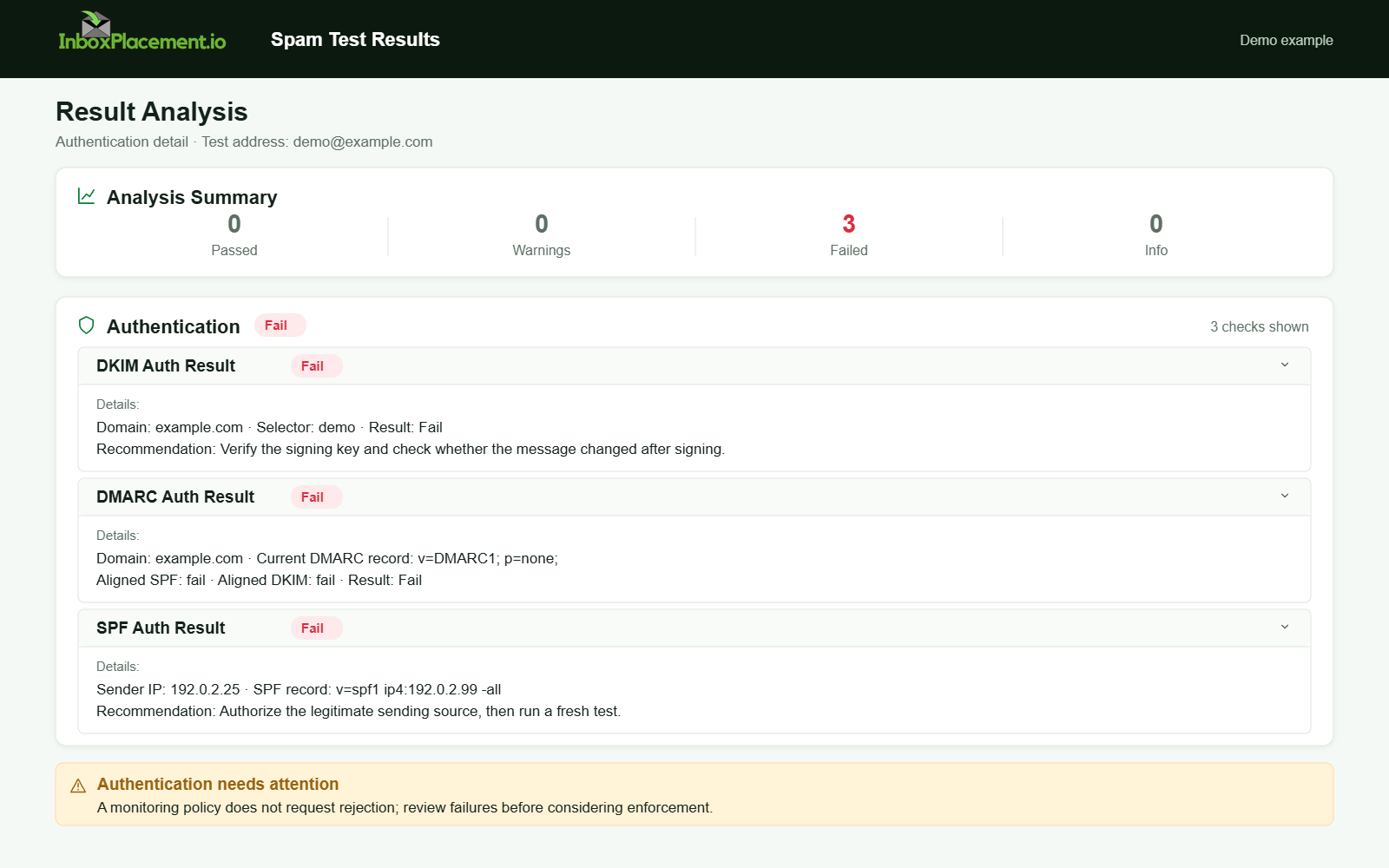
Demo example. Authentication failure diagnosis. Synthetic results for feature explanation; not a live test or customer outcome.
A practical step-by-step workflow
- Locate a recently sent message you control.
- For webmail: use “View original” / “Show original” / “View message source.”
- For desktop clients: open the raw message or headers (terms vary).
- Find the
DKIM-Signatureheader and read thes=tag.- Example in headers:
DKIM-Signature: v=1; a=rsa-sha256; s=selector1; d=example.com; ... - The value immediately after
s=(until a semicolon) is the selector.
- Example in headers:
- Build the DNS name to query:
selector._domainkey.example.com.- Replace selector and
example.comwith values from step 2.
- Replace selector and
- Query DNS for a TXT record.
- Use your DNS provider’s UI, an online DNS lookup, or command-line tools (
dig,nslookup). - Example command (illustrative):
dig TXT selector._domainkey.example.com +short
- Use your DNS provider’s UI, an online DNS lookup, or command-line tools (
- Inspect the DNS TXT record for
v=DKIM1and thep=public key parameter.- If the record exists and contains a
p=value, that is the published public key for that selector.
- If the record exists and contains a
- Compare the key and selector to your sending configuration.
- If you manage signing (ESP, mail server), confirm the selector used by the signer matches the selector in the header and the published DNS key.
- If you change DNS or signer keys, allow DNS TTL propagation, then send a fresh message and repeat steps 1–5 to re-verify.
Examples (illustrative)
Illustrative DKIM-Signature header (this is an example only):
DKIM-Signature: v=1; a=rsa-sha256; s=mail2026; d=example.org; c=relaxed/relaxed; q=dns/txt; h=from:subject:date:message-id; bh=...; b=...
Illustrative DNS TXT record for mail2026._domainkey.example.org (example only):
v=DKIM1; p=MIIBIjANBgkqhkiG9w0BAQEFAAOCAQ8A...
Common mistakes and limitations
Observed evidence
- Missing
DKIM-Signatureheader in outgoing mail. s=present in header but DNS query returns no TXT record.- TXT record exists but uses a different selector than the signer.
Likely causes
- Mail is being rewritten or sent through an intermediary that strips or re-signs headers.
- DNS record not published at the expected selector; typo in selector or domain.
- DNS propagation delay after a recent change; cached responses at resolvers.
- Multiple sending services each use different selectors; mismatch between signer and DNS.
Safe actions
- Confirm which system is signing outgoing mail (ESP, MTA, gateway).
- Use the exact
s=value from a message you sent when querying DNS. - Check your DNS provider’s record editor (avoid assuming the control panel shows the same selector string).
- Allow for DNS TTL propagation after updates; repeat verification with a new message.
- Coordinate key rotation: publish the new selector and keep the old one for a short overlap window until all messages signed by the old key expire.
What this process cannot prove
- Finding a matching DNS TXT record for a selector does not prove that all receivers will accept or prefer that signature.
- A receiver’s decision to place mail in Inbox, Promotions, Junk, or to quarantine it is separate from DKIM verification;
Authentication-Resultsreports the receiver’s checks but does not equal inbox placement.
Decision checklist: observed evidence → actions → retest criteria
| Observed evidence | Likely cause (illustrative) | Recommended action (safe) | Retest criteria |
|---|---|---|---|
No DKIM-Signature header | Mail not signed by your sending path | Confirm sender (ESP/MTA/gateway) signing settings; enable DKIM signing if you control the sending system | Send a new test message from the same sending path and check headers for DKIM-Signature |
s=selector but DNS query returns NXDOMAIN | Selector not published or typo | Re-publish TXT at selector._domainkey.domain or correct selector in signer config | DNS TXT query returns v=DKIM1; p=... and a fresh message shows the same s= |
| DNS record present but signature fails at receiver | Key mismatch, truncated key, or intermediate rewriting | Verify the p= value is complete; ensure signer uses corresponding private key; check for intermediary re-signing | Fresh message shows Authentication-Results reporting dkim=pass (note: this is receiver-reported) |
| Multiple selectors across services | Different services use different selectors | Maintain records for each selector in DNS under selector._domainkey; coordinate rotations | New messages from each service validate against their selector DNS records |
Common troubleshooting notes
- Use the exact
s=value from a message you control to avoid querying the wrong selector or subdomain. - If the
DKIM-Signatureis present but the signature fails, do not assume DNS is the only cause—compare canonicalization, header changes by intermediaries, and signing algorithm mismatches. - When testing, collect the message source and the DNS TXT result as separate observations; do not conflate receiver
Authentication-Resultswith DNS state.
How this connects to inbox placement
DKIM is a sender-authentication signal receivers consider alongside SPF and DMARC. Google’s email sender guidance instructs senders to set up SPF or DKIM for sending domains and to set up DMARC, noting alignment requirements for DMARC checks. Microsoft’s troubleshooting guidance emphasizes that email authentication DNS records help protect against spoofing and that when authentication fails, legitimate messages can be quarantined, rejected, or routed to Junk. Use authentication checks as part of a broader deliverability diagnostic, but do not assume successful DKIM proves inbox placement.
Verification and next steps — separate, actionable items
Observed evidence to collect
- Raw message source showing
DKIM-Signature(copy text of header). - DNS TXT response for
selector._domainkey.yourdomain(copy the full TXT record). - Receiver
Authentication-Resultsheader (if present) from the same message.
Possible causes (illustrative)
- Selector miss-typed in signer configuration.
- DNS record not published or not propagated.
- Intermediary rewriting headers or re-signing mail.
Safe recommended actions
- Use the
s=value from a message you sent to query DNS. - Confirm the
p=value in DNS matches the key material expected by your signer. - Coordinate key rotations by publishing new selector records before switching signers.
- If using multiple sending services, publish each service’s selector record and document which service uses which selector.
Retest criteria
- After applying changes, send a fresh message from the same path and:
- Confirm a
DKIM-Signatureheader is present with the intendeds=value. - Confirm a DNS TXT query for
selector._domainkey.domainreturnsv=DKIM1andp=.... - Optionally, check the receiver’s
Authentication-Resultsheader fordkim=pass(this is a receiver-reported signal and should be treated accordingly).
- Confirm a
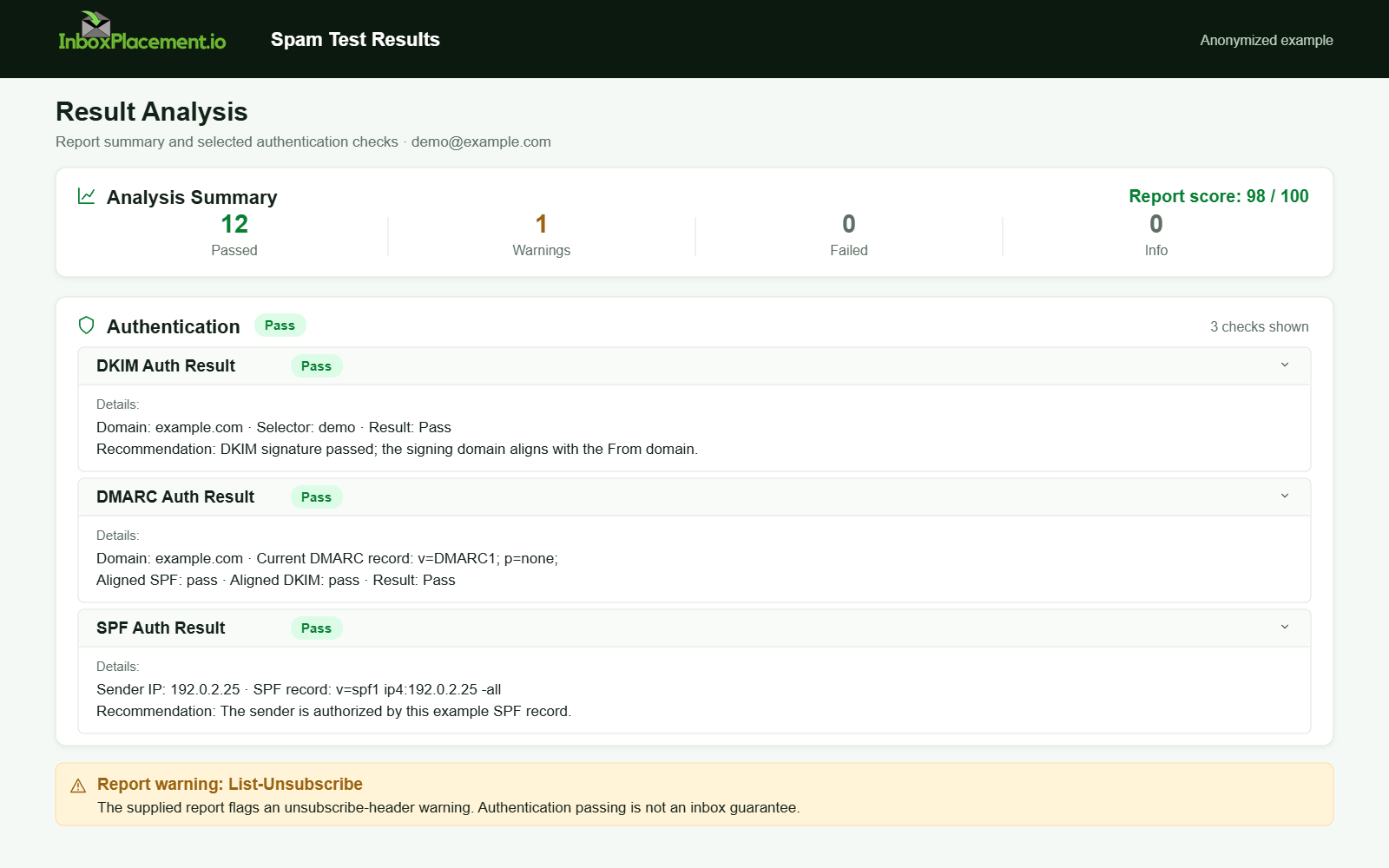
Anonymized example adapted from a supplied product report. Selected figures retained; identifiers and layout reconstructed. Not a new live test.
Sources
- Microsoft documented guidance: “Troubleshoot email authentication in Microsoft 365” explains that email authentication and DNS records help protect organizations from spoofing, and that when authentication fails, legitimate messages can be quarantined, rejected, or routed to the Junk Email folder. Use this official source to verify authentication troubleshooting steps: Microsoft email authentication troubleshooting guidance
- Google’s sender guidance: Google recommends setting up SPF or DKIM for sending domains and setting up DMARC; it also describes alignment expectations and enforcement timelines that affect senders to Gmail. Use the Google sender guidelines to verify sender requirements and alignment guidance, along with the related Google sender guidelines FAQ.
- DMARC working group status: refer to the IETF DMARC working group information for current context about DMARC standards work and related documents.
FAQ
How can I find the selector if I only have a domain name?
You need the s= value found in a message’s DKIM-Signature header to know which selector to query. If you don’t control any sent message, ask the sender/ESP for the selector they use.
What if my DNS shows the TXT record but the receiver reports dkim=fail?
Possible causes include a mismatched private key, header canonicalization differences, or intervening rewriting. Confirm the signer’s private key matches the DNS p= value and that headers weren’t changed in transit.
Do I need a separate selector per sending service?
Illustratively, yes—many organizations publish one selector per sending service so each service can manage its own key. Keep records documented and coordinate rotations to avoid gaps.
Run an InboxPlacement test to verify authentication signals and mailbox placement after applying the recommended changes.