
Gmail · Postmaster Tools · Email Deliverability · Email Authentication
Google Postmaster Tools Guide for Deliverability
· InboxPlacement.io Team
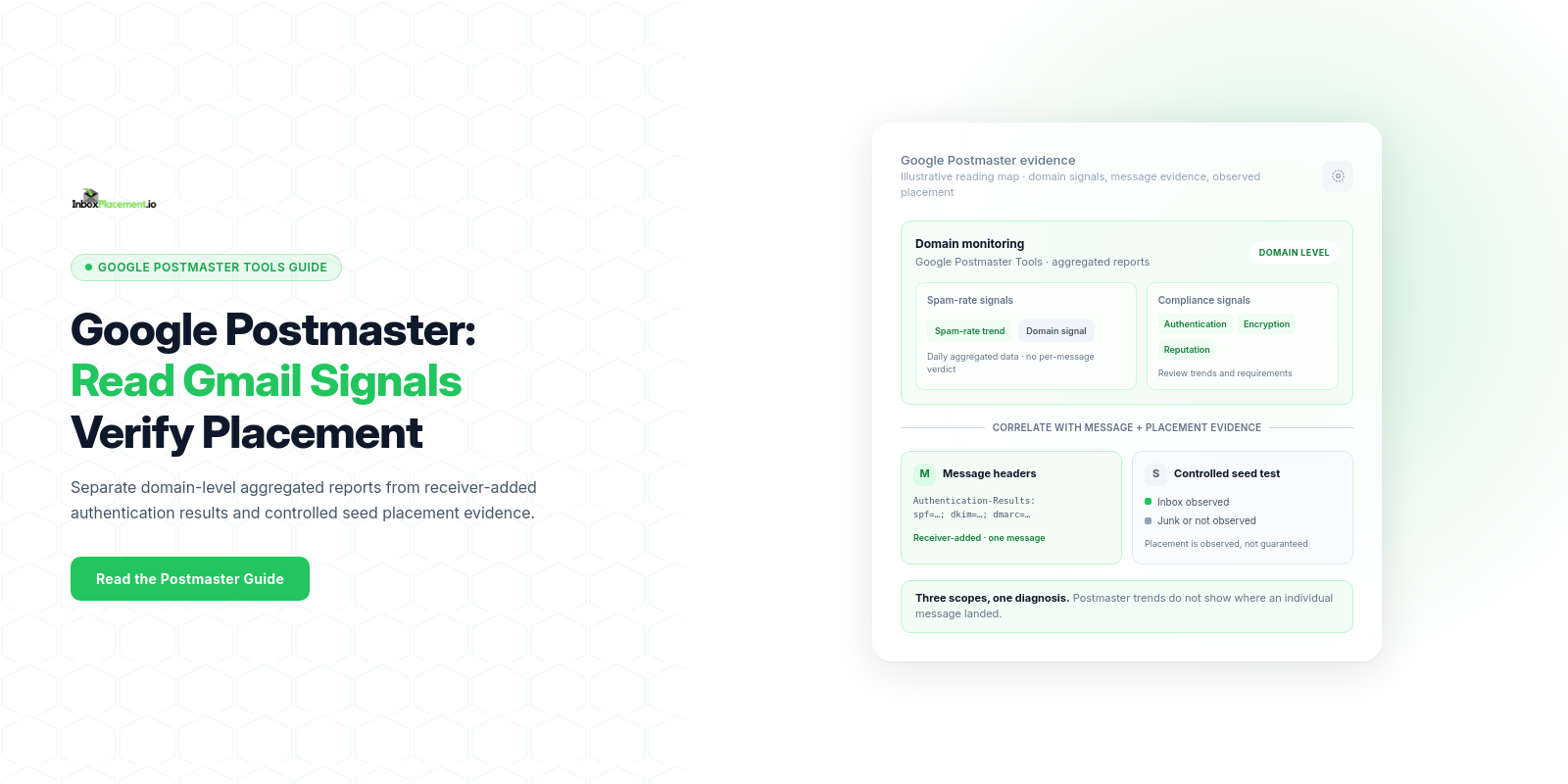
Direct answer and when this topic matters
Google Postmaster Tools is a monitoring and diagnostics service that helps senders inspect signals Google uses for Gmail delivery decisions (for example, spam rate and compliance status). Use it when you send significant volume to Gmail, when Gmail delivery is inconsistent, or after you change authentication or sending infrastructure and need to confirm those signals. If you send close to 5,000 or more messages to personal Gmail accounts within 24 hours, Google considers you a bulk sender and recommends using Postmaster Tools to check compliance and related signals. (Observed evidence: Google guidance; see Sources.)
Core concepts in plain language
- What Postmaster Tools reports are: monitored signals and dashboards Google provides to help senders evaluate how their mail appears to Gmail. Postmaster Tools can show spam-rate metrics and the new Compliance status dashboard that Google added to support its Email sender guidelines. (Observed evidence: Google guidance.)
- Authentication basics you will encounter: SPF, DKIM, and DMARC. Google requires all senders to personal Gmail accounts to authenticate with SPF or DKIM. Bulk senders must use both SPF and DKIM and publish a DMARC policy; for direct email the
From:domain must align with either SPF or DKIM to meet DMARC alignment requirements. Use theAuthentication-Resultsheader as the receiver-side signal that indicates how Gmail evaluated those checks. (Observed evidence: Google guidance.) - What Postmaster Tools cannot prove: an authentication pass/fail or Postmaster report does not guarantee inbox placement. Authentication results (for example, pass/fail in
Authentication-Results), published DMARC policy, receiver disposition, delivery, and inbox placement are separate signals and should be treated independently.
A practical step-by-step workflow
This workflow shows what to collect, what to compare, and safe remediation steps.
- Prepare: collect a representative sample of recent messages you send to Gmail (headers only), the sending domain(s), and the time range for the issue. Do not rely on an isolated message.
- Register and check Postmaster Tools (or confirm access): use Postmaster Tools to review spam rates and Compliance status if available. Google explicitly recommends Postmaster Tools for bulk senders to check adherence to the Email sender guidelines. (Observed evidence: Google guidance.)
- Collect
Authentication-Resultsheaders: from messages delivered to Gmail accounts you control, capture theAuthentication-Resultsheader(s) that show SPF, DKIM, and DMARC evaluation. - Compare observed evidence in Postmaster Tools with the message headers and sending patterns.
- Take safe actions (see checklist below), implement changes in controlled batches, and then retest by repeating steps 1–4.
Checklist — immediate safe actions
- Verify SPF and DKIM are published and syntactically valid for sending domains.
- Verify DMARC is published; keep enforcement (
p=quarantineorp=reject) only after testing — do not weaken an existing DMARC enforcement policy without documented owner authorization and a rollback plan. - Ensure messages are sent over TLS connections (Google lists TLS as a sender requirement).
- Use Postmaster Tools to monitor spam rate; Google recommends keeping the user-reported spam rate below 0.10% and avoiding 0.30% or higher. This is the Postmaster complaint metric, not the percentage of messages placed in Spam.
- If classified as a bulk sender (≈5,000 messages to personal Gmail accounts in 24 hours per Google’s example), use the Compliance status dashboard in Postmaster Tools to check adherence to Gmail’s Email sender guidelines.
Decision table (illustrative)
| Observed evidence (Postmaster or headers) | Likely cause(s) (illustrative) | Safe next steps |
|---|---|---|
| Spam rate above Postmaster Tools guidance | High complaint volume, poor list hygiene, or unexpected frequency | Pause or throttle campaigns to Gmail recipients; review opt-in and unsubscribe flows; use Postmaster Tools trends to identify timing and cohorts |
Authentication-Results shows DMARC fail for messages with your brand in From: | Misaligned From: domain vs SPF/DKIM or forwarding altering signatures | Align the DKIM signing domain (d=) or the SPF-authenticated envelope sender domain with the visible From: domain; publish DMARC only under an owner-approved rollout plan. If enforcement already exists, do not weaken it; retest alignment with controlled messages before changing policy |
| Compliance status indicates non-compliant traffic (illustrative) | Policy or content issues per Google Email sender guidelines | Follow the specific Email sender guidelines and use Postmaster Tools to monitor remediation progress |
(Every scenario above is illustrative. Collect your data before applying actions.)
Examples clearly labelled as illustrative
Illustrative example 1 — authentication mismatch
- Observed evidence:
Authentication-Resultsshows SPF pass forsending.example.netbut DMARC fail forbrand.example.cominFrom:, with no passing aligned DKIM signature (illustrative). - Possible cause: SPF passes for the envelope sender domain, but its organizational domain (
example.net) differs from the visibleFrom:organizational domain (example.com). With no passing aligned DKIM signature either, DMARC fails. Different subdomains of the same organizational domain can align under relaxed alignment, so a subdomain difference alone does not prove failure. - Recommended action: Configure an aligned DKIM signing domain (
d=) or an aligned SPF-authenticated envelope sender domain. Do not change the visibleFrom:identity without reviewing the sending workflow. Test with a small sample, then monitor Postmaster Tools spam rate andAuthentication-Resultsheaders. - Verification data to collect:
Authentication-Resultsheaders from the test messages, the DKIM signature details (d=ands=), the envelope-from domain, and matching Postmaster Tools spam-rate for the same time window. Label this scenario illustrative and collect evidence before concluding results.
Illustrative example 2 — sudden spam-rate spike
- Observed evidence: Postmaster Tools reports an upward spike in spam rate (illustrative).
- Possible causes: Re-engagement to stale addresses, increased sending frequency, or a compromised account sending unwanted messages.
- Recommended action: Immediately reduce sending volume to Gmail recipients, quarantine or suspend suspected sender credentials, and perform list hygiene. Use Postmaster Tools to observe whether spam-rate trends change.
- Verification data to collect: timestamps and volumes for the suspected campaigns, complaint feedback (if available), Postmaster Tools spam-rate data for the affected IPs/domains, and
Authentication-Resultsheaders for representative messages. Label this scenario illustrative and collect evidence before inferring remediation success.
Common mistakes and limitations
Observed facts
- Google’s public guidance defines a bulk sender as roughly 5,000 messages to personal Gmail accounts within 24 hours and says bulk sender status can be permanent once assigned. It requires SPF or DKIM and TLS for all senders to personal Gmail accounts; bulk senders must use both SPF and DKIM plus DMARC, and it added a Compliance status dashboard to Postmaster Tools. (Observed evidence: Google guidance.)
Common mistaken interpretations (likely causes)
- Treating an SPF or DKIM pass as proof of inbox placement. These are authentication signals that influence delivery decisions but do not guarantee placement.
- Assuming that a monitoring-only DMARC policy is equivalent to no policy. A published monitoring-only DMARC policy still gives receivers policy and reporting information; it simply does not request quarantine or rejection.
- Weakening DMARC enforcement as a shortcut. Never recommend reducing DMARC enforcement without explicit owner authorization, narrow scope, and a rollback plan.
Limitations of Postmaster Tools and headers
- Postmaster Tools reports are aggregated and updated daily; they are not a real-time per-message delivery log. Low-volume days may have missing data to protect user privacy. Missing data is not a passing result, and you should not increase volume merely to populate a dashboard.
Authentication-Resultsis a receiver’s assessment and represents Gmail’s tests on received messages; it does not alone prove mailbox placement.
How the topic connects to inbox placement
Observed evidence and explanation
- Google’s sender requirements, including authentication and low spam rates, shape how Gmail evaluates incoming mail. Postmaster Tools is the recommended place to check whether your sending practices align with those requirements. However, an authentication pass (e.g., in
Authentication-Results) or a favorable Postmaster metric is not a guarantee of inbox placement—delivery decisions consider multiple signals and recipient behavior.
Practical implication
- Use Postmaster Tools signals and
Authentication-Resultsas diagnostic indicators to reduce obvious delivery risks, then verify mailbox placement with end-to-end testing (for example, using controlled inbox tests).
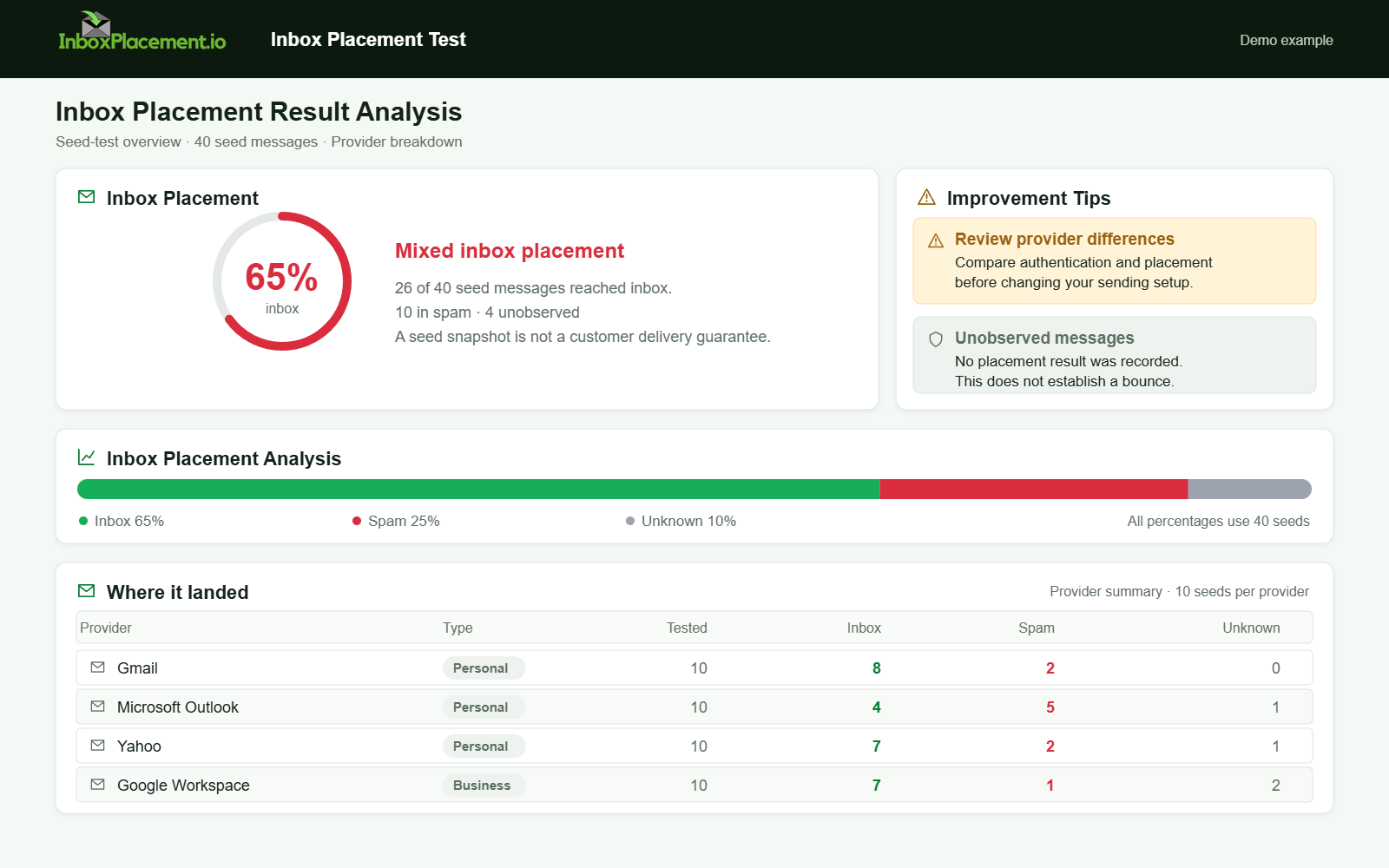
Demo example. Mixed placement across providers. Synthetic results for feature explanation; not a live test or customer outcome.
Verification and next steps
What to collect before you act
- A set of message headers that include
Authentication-Resultsfor messages sent to Gmail addresses you control. - Date/time ranges, sending IPs, and sending domains.
- Postmaster Tools reports for the same period (spam-rate, Compliance status, and any other available dashboards).
Safe verification steps
- Fix authentication or configuration issues incrementally.
- Send small, controlled batches to Gmail test addresses.
- Collect receiver-added headers and seed results for those small batches. Review Postmaster Tools over a comparable time window when data is available; a small batch may not generate dashboard data.
- Compare
Authentication-Results, Postmaster metrics, and actual mailbox delivery for the test messages.
What the verification cannot prove
- Authentication results or Postmaster metrics cannot prove inbox placement for every recipient or guarantee that changes will have identical outcomes at scale. They are diagnostic signals to inform further testing.
FAQ
How do I find Authentication-Results in a message header?
Authentication-Results appears in the message headers added by the receiving mail service. Collect the full headers from messages delivered to Gmail test accounts you control and inspect the Authentication-Results line for SPF, DKIM, and DMARC evaluations.
If Postmaster Tools shows a high spam rate, should I immediately stop all mailings?
Observed evidence suggests reducing volume or pausing problematic campaigns while you investigate. Safe actions include throttling, focusing on engaged recipients, and reviewing list hygiene. Use controlled tests to confirm the impact of changes and collect Postmaster and header data before drawing conclusions.
Why might Postmaster Tools show no data after a small test?
Google may withhold data when daily message volume is too low to protect user privacy. Use the controlled test's receiver-added headers and actual seed placement as its evidence, then review aggregated Postmaster signals when available. Do not interpret missing data as success or increase unwanted mail just to populate a dashboard.
Run an inbox placement test to compare authentication signals with observed mailbox placement after applying the recommended changes. Use DMARC monitoring to review your domain's separate authentication-report evidence.
Sources
- Gmail email sender guidelines FAQ — Google: bulk-sender classification, compliance monitoring, and spam-rate recommendations.
- Gmail email sender guidelines — Google: authentication, TLS, alignment, unsubscribe requirements, and spam-rate guidance.
- Get started with Postmaster Tools — Google: domain verification, access, and why low-volume days may not display data.